
Viewing the event log
The event log shows you your account’s most recent activities – for example sign-ins, settings changes, imports or integration tests. It lets you trace who did what and when in your access at any time. It displays the last 250 events from the last 60 days.
Step by step
- Sign in to the customer portal.
- In the sidebar, click the “Events” menu item.
- The event log opens. Below the heading you see the note “Overview of the last 100 events (max. 60 days).”
- You see a table with the columns “Date”, “Event”, “Status” and “Detail”.
- Use the table’s search box to filter entries, and the column headers to sort them (by default sorted by “Date” in descending order, the most recent event first).
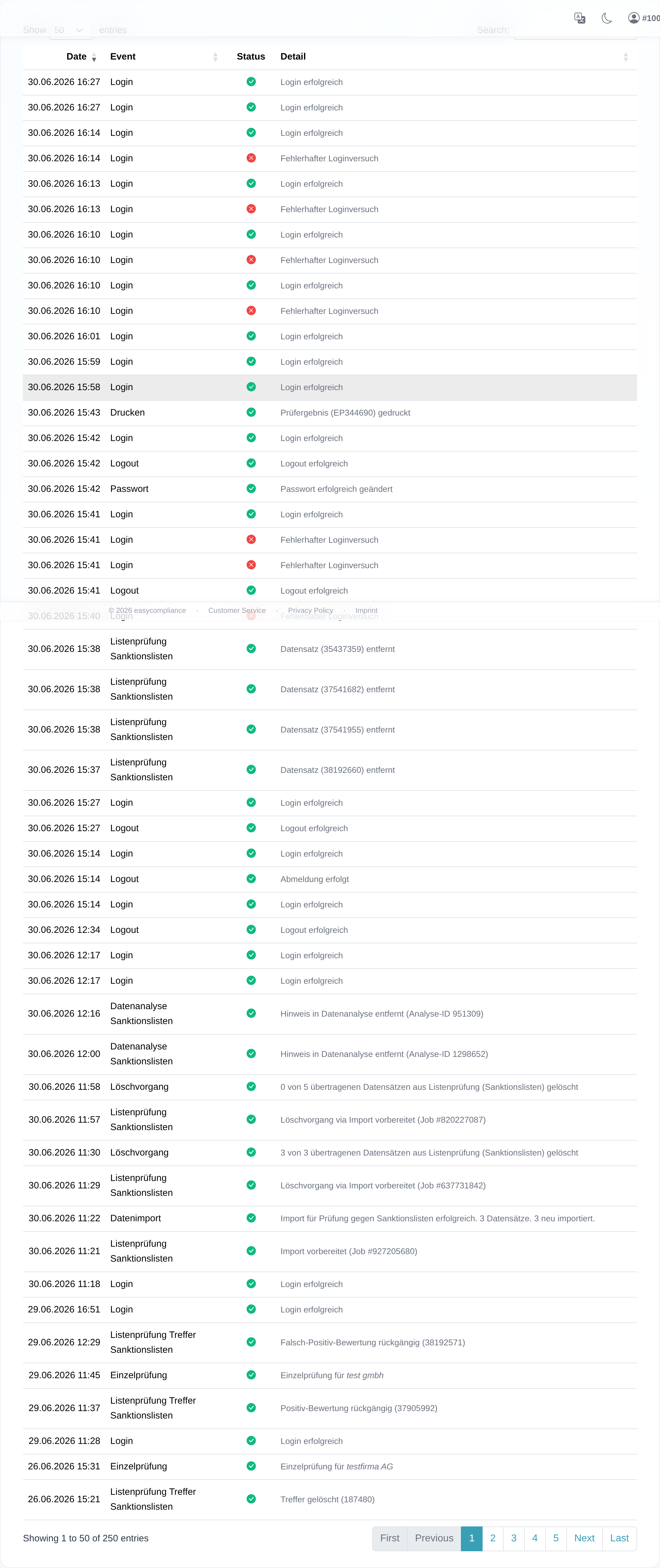 The event log with the event table and its columns “Date”, “Event”, “Status” and “Detail”.
Good to know
- Scope: the log shows the last 250 events from the last 60 days. Older events, or entries beyond that number, are no longer shown in the table.
- Table columns:
- “Date” – the time of the event (date and time).
- “Event” – the type of event, e.g. a sign-in, a settings change or an import.
- “Status” – a green check mark for a successful event (tooltip “Erfolgreich”) or a red cross for an error (tooltip “Fehler”).
- “Detail” – additional information about the event.
- Searching and sorting: the table is searchable and can be sorted by every column except “Status”. By default it is sorted by “Date” in descending order.
- Empty state: if there are no events, the page shows the note “No events available.”
- Why it matters (traceability / audit): the log helps you trace your account’s activity – for instance to check when a setting was last changed or an import was run.
Frequently asked questions
Where do I find the event log? In the sidebar, click the “Events” menu item. If the item does not appear, your access is missing the “View event log” permission.
How far back does the log go? It shows the last 250 events from the last 60 days. Older entries are not displayed.
What does the icon in the “Status” column mean? A green check mark indicates a successful event (“Erfolgreich”), a red cross an event that failed (“Fehler”).
The table is empty – why? If it shows “No events available.”, no events were recorded for your access in the last 60 days.
I cannot see the “Events” menu item. Then your access is missing the “View event log” permission. Please contact your company’s main access or our customer service.
Requirements
- You need the “View event log” permission. Without it, the “Events” menu item is not visible, and opening the page directly is refused with the message “Sie haben keine Berechtigung, Ereignisse anzusehen.” (“You do not have permission to view events.”).
Related articles
Last reviewed: