
Managing account data, contact details and notification emails
In the settings area of your dashboard you maintain the contact person, the email address(es) and the phone number of your account, and you decide which notification emails you receive from automatic monitoring. Company, customer number and address are shown for reference only and cannot be changed here.
Step by step
Edit account data and contact details
- Open your dashboard and scroll down to the “Settings & Account Data” section. Alternatively, click Settings in the sidebar.
- In the “Master data” card, the top fields Company, Customer Number, Address and Postcode, City are read-only. You cannot change them here.
- In the “Contact person” field, enter the name of the contact person.
- In the “Email (notifications)” field, enter the recipient address(es) for
notifications. Separate several addresses with a comma, e.g.
[email protected], [email protected](the form hint reads: “Separate multiple addresses with a comma”). - In the “Phone” field, enter your phone number.
- Click “Save”. The confirmation “Setting saved successfully.” appears.
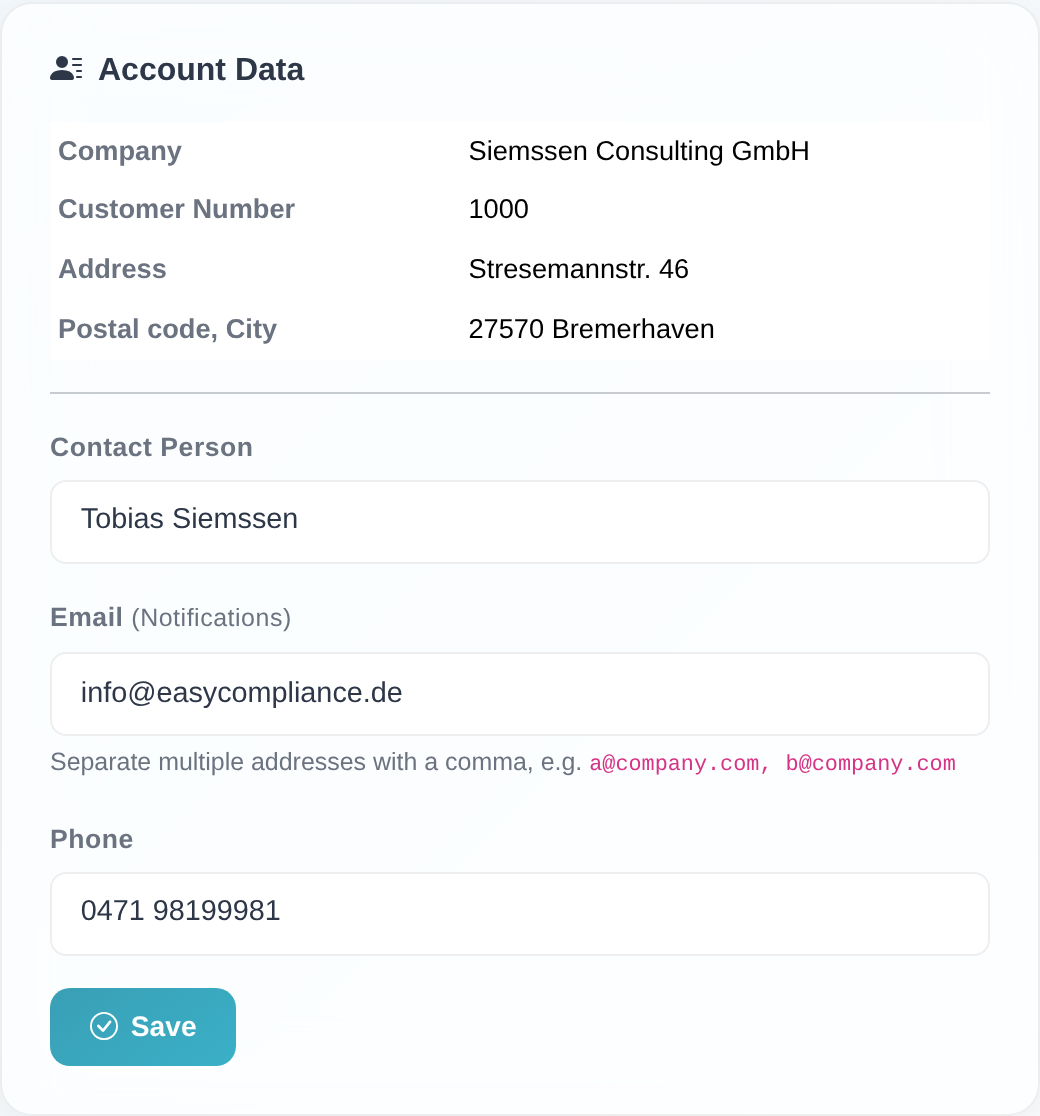 The “Master data” card: read-only details at the top, with the editable “Contact person”, “Email (notifications)” and “Phone” fields and the “Save” button below.
Choose your notification emails
- In the same settings area you find the “Email notifications” card.
- For each of the three options, set the selector to “Yes” or “No”. The change is
saved immediately (confirmation: “Setting saved successfully.”):
- “Daily email (08:00) when there are no hits?” – a daily confirmation at 08:00 when there are no hits.
- “Daily email (08:00) when there are hits?” – a daily report at 08:00 when there are hits.
- “Immediate email on hits?” – an immediate notification as soon as a new hit appears in monitoring.
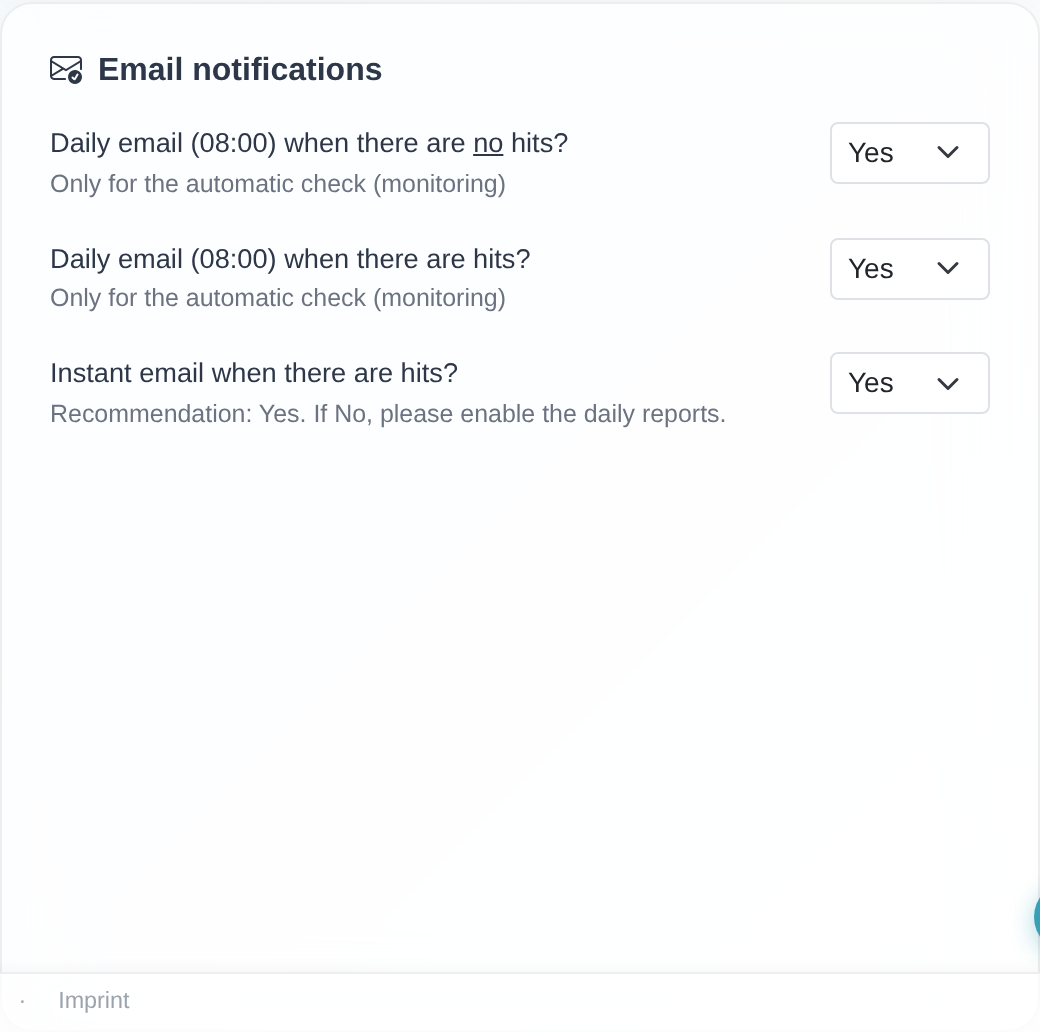 The “Email notifications” card with the three “Yes”/“No” selectors for the daily reports and the immediate email.
Good to know
- Recommendation for the immediate email: set “Immediate email on hits?” to “Yes”. The interface hint reads: “Recommendation: Yes. If No, please enable the daily reports.” – this way you never miss a new hit.
- Multiple recipients: in the “Email (notifications)” field you can store several addresses separated by commas. All listed addresses receive the same notifications.
- Read-only: you do not change Company, Customer Number or Address yourself. If any of these details are wrong, contact customer service.
- Relation to monitoring: the three notification options apply only to automatic list screening (ongoing monitoring). Hits from an individual check do not trigger these emails. The hint next to the daily reports therefore reads “For automatic list screening only”.
- Permission: without the “Edit settings” permission, neither card can be edited. The section may therefore be missing for restricted additional accesses.
Frequently asked questions
How do I change the email address for notifications? Open the “Master data” card on the dashboard, enter the address(es) in the “Email (notifications)” field and click “Save”. Separate several addresses with a comma.
Can notifications be sent to several people?
Yes. Enter several comma-separated addresses in the “Email (notifications)” field, e.g.
[email protected], [email protected]. They all receive the same emails.
Why can’t I change the company, customer number or address? These fields are read-only. You do not correct them yourself – please contact customer service to do so.
Which email should I enable so I never miss a hit? Set “Immediate email on hits?” to “Yes”. You are then informed straight away as soon as a new hit appears in monitoring.
I can’t see the “Email notifications” card. The card only appears when automatic list screening is active. For test accounts and accounts without list screening it is hidden. If the whole settings area is missing, your access lacks the “Edit settings” permission.
Requirements
- The “Edit settings” permission. Without it, the settings area shows the notice “The permissions to edit settings are disabled for your user.” and nothing can be changed.
- The “Email notifications” card relates to automatic monitoring (list screening). For test accounts and accounts without list screening this card is hidden; the “Master data” card remains available.
Related articles
Last reviewed: