
Avoiding duplicate entries on import (deduplicate by name or reference)
When you import a file into your monitoring list, you can have duplicates skipped automatically so that the same business partner does not end up in your list more than once. This article explains the duplicate options in step 2 of the import wizard and the difference between detection by name and by reference – across all modules (sanctions lists, PEP, Dow Jones).
Step by step
- Under “Options”, tick “Skip duplicates (Recommended)”. Only then do the two detection choices appear.
- Choose how duplicates should be detected:
- “By name” (default) – a new entry is skipped if a record with the same name already exists in your monitoring list.
- “By reference” – a new entry is matched by its reference value. The question-mark icon next to the option shows the note: “The reference must be present both in the import file and in the existing data in easycompliance.”
- Only for “By reference”: on the right, under “Reference column (optional)”, map the column that holds the reference in your file. Do not leave “– No reference –” selected, otherwise matching by reference is not possible.
- Click “Start Import”.
- If you chose “By reference” but did not map a reference column, the dialog
“No reference column selected” appears with the text: “You selected ‘Detect
duplicates by reference’ but did not choose a reference column. Without a reference column,
duplicates cannot be detected by reference.” You have two options:
- “Select reference column” – the dialog closes and the focus jumps to the reference column selector.
- “Continue import without reference” – the import starts without reference matching.
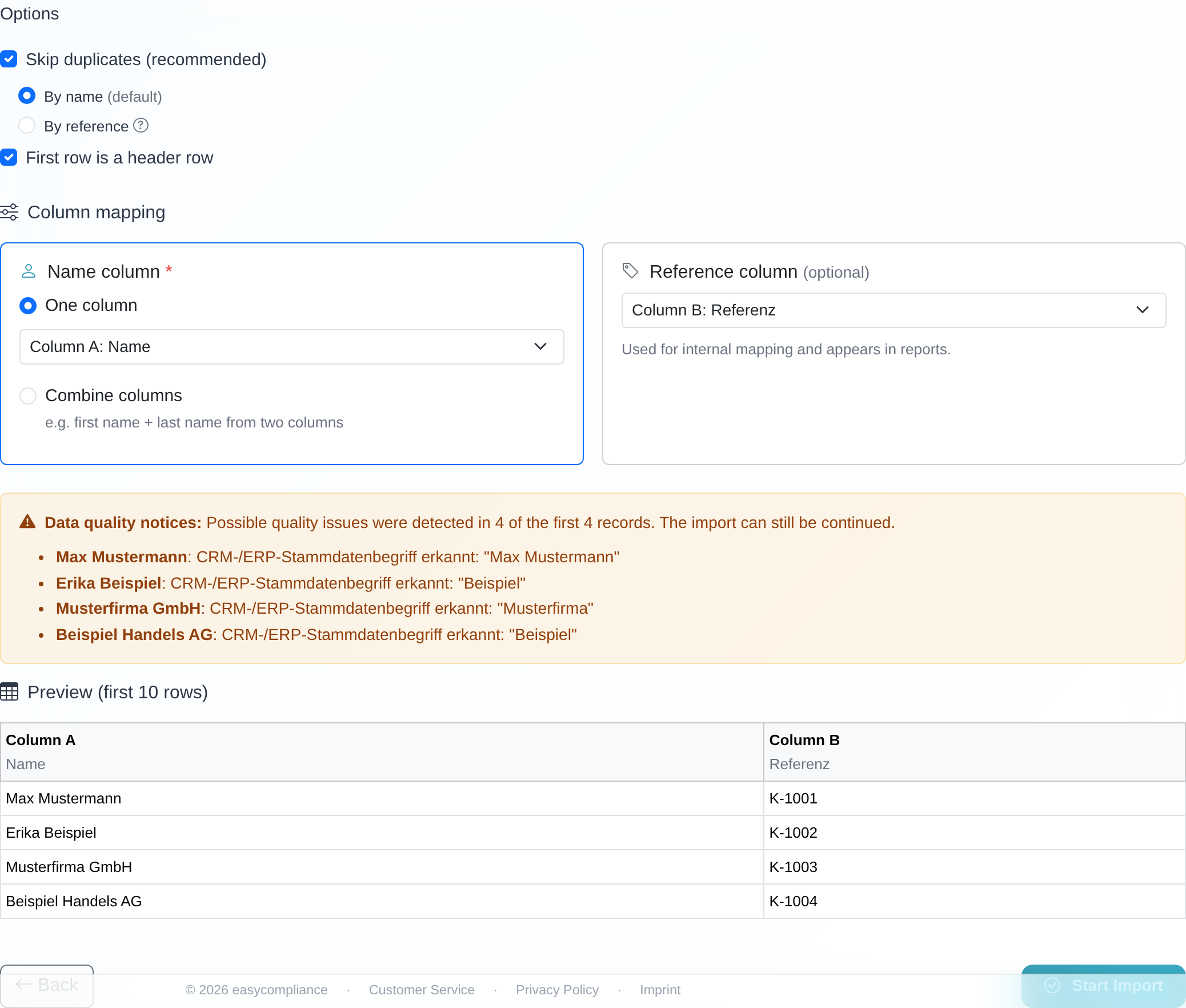 The “Skip duplicates (Recommended)” option with the choices “By name” (default) and “By reference” and the matching reference column.
Good to know
- Pre-filled from your account settings: whether “Skip duplicates (Recommended)” is ticked by default and whether “By name” or “By reference” is pre-selected is taken from your search options. This keeps the import, your settings and the archiving from the individual check consistently pre-filled. You can change the choice for each import individually.
- “By reference” requires a match on both sides: the reference value must be present both in the import file and already in easycompliance. Only then does the system treat the entry as a duplicate by reference. An existing record without a stored reference is therefore not detected as a duplicate of a new row that has one – the row is imported.
- Same name, different reference = not a duplicate: with “By reference”, only the reference value counts. Two business partners with an identical name but different references are both imported and screened – that is exactly what this mode is for.
- Rows without a reference value are checked by name: if a row of your import file has no value in the reference column, duplicate detection falls back to the name comparison for that row. This prevents duplicate entries even where references are incomplete – for example when the same file is processed again.
- Checkbox cleared = nothing skipped: if you clear “Skip duplicates (Recommended)”, every row is imported – including entries that already exist. The “By name”/“By reference” choice is then ignored.
- The reference column serves a double purpose: the column mapped under “Reference column (optional)” is used for internal matching and appears in reports – independently of duplicate detection.
- Results only by email: as with imports in general, processing runs in the background. How many records were skipped is shown in the confirmation email, not in an instant display.
Frequently asked questions
What does “Skip duplicates” mean? When this option is active, easycompliance does not import a record again if it already exists in your monitoring list by the chosen criterion (name or reference). This prevents duplicate entries.
What is the difference between “By name” and “By reference”? With “By name” the system compares the name. With “By reference” it compares the reference value (for example your internal identifier). “By reference” is more precise when several partners share the same or a similar name.
I chose “By reference” but no duplicates are skipped. Why? The reference must be present both in the import file and already in easycompliance. Check that you mapped the correct “Reference column (optional)” and that the reference values match the existing records.
I chose “By reference” – why was a name imported twice? Most likely the reference values differ, or the existing record has no reference stored. With “By reference”, only the reference counts: identical names with different references are deliberately not treated as duplicates.
When I start the import, “No reference column selected” appears. What should I do? You chose “By reference” but did not map a reference column. In the dialog, choose “Select reference column” and map the column, or click “Continue import without reference” to proceed without reference matching.
Can I change the default permanently? The pre-fill comes from your search options. Adjust it there and it becomes the default for future imports. For a single import you can always change the choice directly in the wizard.
Requirements
- You are in the import wizard at “Step 2: Preview & Options”. How to get there is described in Importing records from a file (CSV, Excel).
- For detection by reference, your import file needs a column with reference/identifier values.
Related articles
Last reviewed: