
Exporting a CSV status report of your monitoring list
You can download the current state of your monitoring list as a CSV file at any time – including the check ID, the screened name, the reference and the screening result for each record. This is useful for your own documentation, for archiving or for sharing with colleagues. Only your own records are exported.
Step by step
- Open the relevant module and its monitoring list via “Liste bearbeiten” (Edit list). You are now on the “Datensätze ansehen & bearbeiten” (View & edit records) page.
- At the top right, click the “Exportieren” (Export) button.
- Your browser automatically downloads a CSV file. The file name contains your
customer number and the date, e.g.
1000_30062026-141503.csv. - Open the file in Excel, LibreOffice Calc or a text editor.
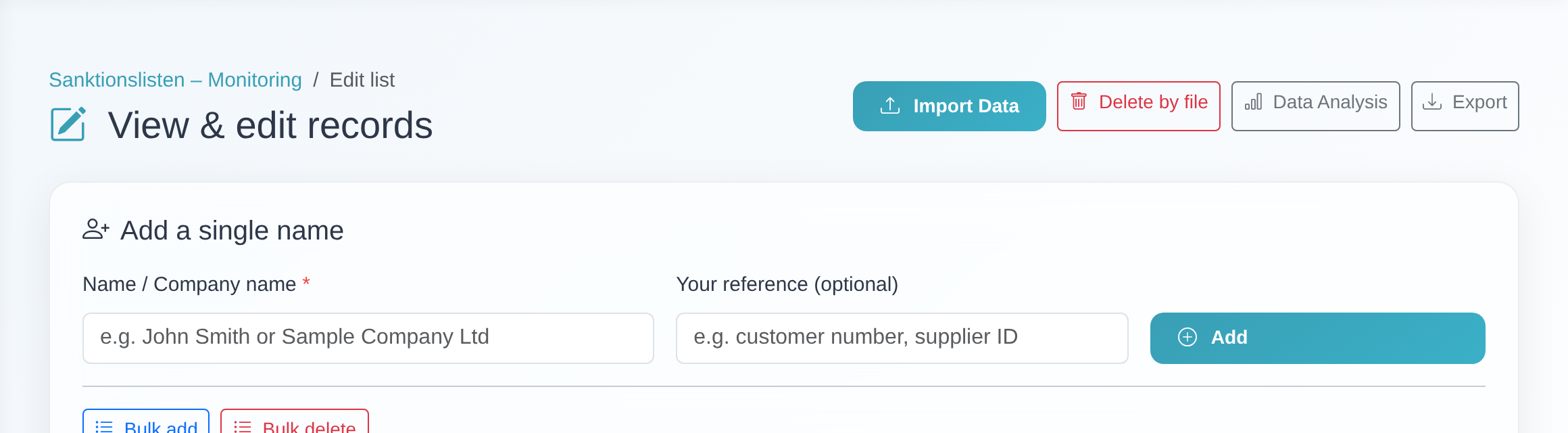 Use the “Exportieren” (Export) button on the “View & edit records” page to download the CSV status report.
Good to know
- The CSV file contains these columns (header row, in German):
- Prüf-ID (check ID) – the record’s internal ID in the list.
- Kundennummer (customer number) – your customer number.
- Geprüfter Name (screened name) – the monitored name.
- Referenz (reference) – your own reference/case number for the record.
- Hinzugefügt am (added on) – the date and time the record was added
(format
DD.MM.YYYY - HH:MM, otherwise-). - Zuletzt geprüft (last checked) – the date and time of the last automatic check
(format
DD.MM.YYYY - HH:MM, otherwise-). - Prüfergebnis (screening result) – OK (no hit) or TREFFER (hit) when there is a potential hit.
- Modul (module) – the screened module as a fixed short token (
sanctions,pep,djmae,djtraeordjsco), e.g. for machine filtering. - Teilliste (list segment) – the name of the list segment the record belongs to (only relevant when the automatic data import uses list segments; otherwise empty).
- Treffer-Details (JSON) (hit details) – only filled for TREFFER rows: a compact,
machine-readable summary of the most recent hit in JSON format (hit ID, timestamp,
assessment status, matched names with list/legal source, match score and origin data).
Very large hits are shortened (
"truncated": true); the full details remain available in the hit view inside the customer portal.
- Only your own records: the export is always tied to your customer number. Records of other customers or tenants are never included.
- Automatic delivery via FTPS: on request, easycompliance provides the same status
report automatically every day in your FTP directory – one file
EXPORT_<segment>.csvper list segment, records without a segment inEXPORT_monitoring.csv(the files are overwritten on every run). This requires an active FTPS access for the automatic data import; activation is handled by customer service. Please do not place your own files with theEXPORT_prefix in the root folder of your FTP directory – this namespace is reserved for the automatic export. - Delimiter and encoding: the file is UTF-8 encoded and uses the semicolon (
;) as the delimiter. A UTF-8 marker (BOM) is prepended so that Excel displays umlauts and special characters correctly – a double-click is usually enough. - If Excel shows everything in a single column: import the file via Data → From Text/CSV and select the semicolon as the delimiter.
- Module-specific: exactly the list of the currently opened module is exported. To export a different module, switch to it first and start the export again.
Frequently asked questions
Where do I find the export button? On the “Datensätze ansehen & bearbeiten” (View & edit records) page – reached via “Liste bearbeiten” (Edit list) in the relevant module – at the top right as the “Exportieren” (Export) button.
Which records are included in the CSV? Only your own records from the currently opened module. The export is firmly tied to your customer number.
What does “TREFFER” in the screening result column mean? That there is a potential hit for this record. OK means no hit was found during the last check. You still assess hits inside the customer portal.
Excel shows everything in one single column – what should I do? The file uses the semicolon as the delimiter. Open it via Data → From Text/CSV and set the delimiter to semicolon. Thanks to UTF-8, umlauts are displayed correctly.
Clicking “Exportieren” shows “Keine Berechtigung.” – why? Your access is missing the read permission “view lists”, or the selected module is not enabled for your customer. Please contact your manager access or customer service.
Requirements
- The read permission “view lists” (
view lists). Without this permission, the export shows the message “Keine Berechtigung.” (no permission). - The relevant module must be enabled for your customer (e.g. sanctions lists, PEP or Dow Jones). Without that, the module’s list cannot be exported.
Related articles
Last reviewed: