
What is automatic monitoring – and how do I read the overview?
Automatic monitoring is the ongoing, automatic screening of your uploaded business-partner list against the lists. easycompliance checks the records regularly and reports new hits. On the “Automated Screening (Monitoring)” overview page you can see at a glance how many records are being monitored, whether there are any unrated hits, and where to reach import, editing, data analysis and hits.
Step by step
- From the navigation, open “Overview” under “Automated Screening (Monitoring)”.
- Use the tabs at the top to choose the module you want: Sanctions Lists, PEP, DJ MAE, DJ TRAE or DJ SCO. Only the modules enabled for you appear as tabs.
- Read the four metric tiles:
- “Records in monitoring” – the number of your monitored entries. Clicking the number opens “View/Edit List”.
- “Unrated hits” – hits still open for assessment. If the number is greater than 0, it is shown in red and the “Rate now” button appears.
- “Data analysis notes” – notes on data quality. Clicking opens Data Analysis.
- “Go to hits overview” – a link to the module’s hits page.
- Continue from the overview:
- “Import Data” – upload new records.
- “View/Edit List” – view, change or add individual entries.
- “Data Analysis” – check data quality.
- “Hits” – view and assess hits.
- If there are no records yet, the page shows “No records imported yet” and the “Import now” button.
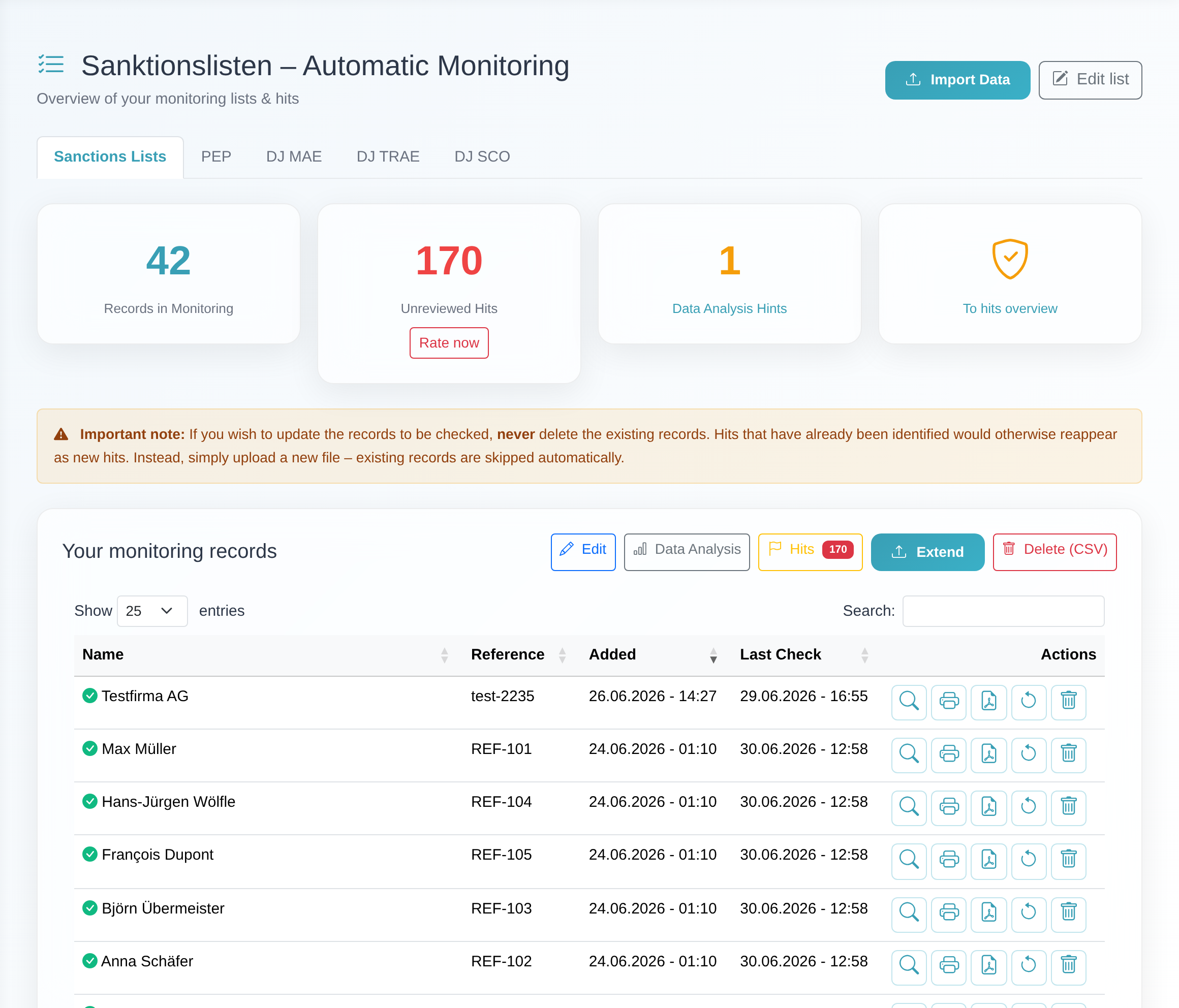 The monitoring overview with tabs for the enabled modules and the tiles “Records in monitoring”, “Unrated hits”, “Data analysis notes” and “Go to hits overview”.
Good to know
- Module tabs only show enabled modules. Which tabs appear depends on your account and plan. Each tab leads to that module’s monitoring overview; the tiles count only that module’s records and hits.
- Never delete records in order to update them. Once records exist, the “Important note” appears: to update, never delete the records that already exist, otherwise hits that were already identified will reappear as new hits. Instead, simply upload a new file – records that already exist are skipped automatically.
- “Delete all records” keeps existing hits. The “Delete all records” section removes every entry from the monitoring list. This action cannot be undone; existing hits are kept. It is only visible with editing permission.
- Import, extend and delete are only visible if your access may edit lists. Without that permission you see the overview and the metrics, but no editing buttons.
Frequently asked questions
What does “automatic monitoring” mean? It is the ongoing, automatic screening of your uploaded business-partner list against the lists. Your records are checked automatically on a regular basis, and new hits are reported.
Why can’t I see the “Sanctions Lists” tab? For certain plans and test accounts, sanctions-list monitoring is not available. The tab is then hidden, and opening it directly shows “This module is not available in your subscription.” Other modules may still be usable.
What does the “Unrated hits” tile tell me? It shows how many of this module’s hits have not yet been assessed. If the number is greater than 0, it is shown in red and the “Rate now” button takes you straight to the hits overview.
How do I update my list correctly? Simply upload a new file via “Import Data”. Records that already exist are skipped automatically. Do not delete the existing records to update them.
I don’t see any buttons for importing or editing. These actions are only visible with editing permission. If your permission is not sufficient, contact your manager access or customer service.
Requirements
- An access with permission to view lists. If it is missing, the message “You do not have permission to view lists.” appears.
- The relevant module must be enabled for your account. If it is not, “This module is not enabled for your account.” appears.
- Note: For certain plans and test accounts, sanctions-list monitoring is not available. In that case the page reports “This module is not available in your subscription.” and the “Sanctions Lists” tab is not shown. Other modules (e.g. PEP or Dow Jones) may still be usable.
Related articles
Last reviewed: