
Logging in with a two-factor code (email code or authenticator app)
If two-factor authentication is active for your access, the customer portal asks for an additional six-digit security code after you enter your customer number and password. Only after you confirm that code do you reach your dashboard. This article shows how to enter the code during your daily login – whether you receive it by email or read it from an authenticator app.
Step by step
- Sign in as usual with your customer number and password (see Signing in to the customer portal).
- After a successful sign-in, the “Two-Factor Authentication” page opens with the prompt “Please enter your security code”.
- Have your six-digit code ready:
- Email method: the code was automatically sent to your stored 2FA email address. Open the email with the subject “Neuer 2FA-Code” (new 2FA code).
- Authenticator app (TOTP): the page shows the note “Enter the code from your authenticator app.”. Open the app and read the currently displayed code.
- Type the code into the “Security Code” field (with the app method the label reads “6-digit authenticator code”). The field accepts exactly six digits.
- Click “Confirm Code”.
- If the code is correct, you are taken straight to your dashboard and are fully signed in.
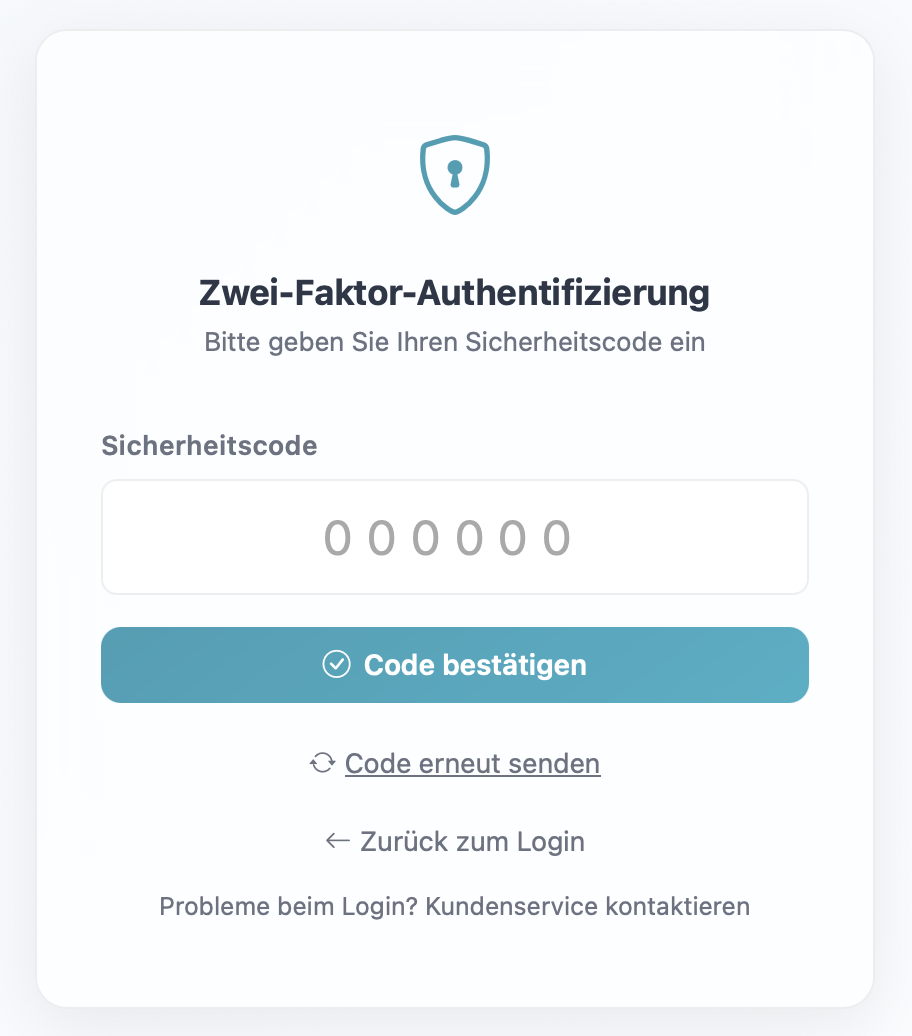
The 2FA page with the six-digit input field and the “Confirm Code” button.
Good to know
- Two methods, depending on your setup:
- Email code: the code is sent to your stored 2FA email address and is valid for 10 minutes. After that you have to request a new code.
- Authenticator app (TOTP): the code is generated in your app and changes every 30 seconds. Always enter the code currently shown.
- Resend code (email method only): below the form you find the “Resend Code” link. It sends a fresh code to your 2FA email address and invalidates the previous one. After sending, the message “A new code has been sent to your email address.” appears. The authenticator app has no such link – the app generates the code itself.
- Back to login: use “Back to Login” to return to the sign-in page if you want to cancel the process.
- Help with problems: at the bottom of the page, the link “Trouble logging in? Contact customer service” takes you straight to our customer service.
- Activating or setting up 2FA: this page appears only when 2FA is already active. To turn 2FA on for the first time or to change the method, see Setting up two-factor authentication.
Frequently asked questions
Where do I get the six-digit code? That depends on your configured method. With the email method, the code arrives automatically by email with the subject “Neuer 2FA-Code”. With the authenticator app, you read the code directly in the app.
The message “The code entered is invalid or has expired.” appears – what should I do? The code is no longer valid. With the email method it is probably older than 10 minutes: click “Resend Code” and use the new code. With the authenticator app, the code has changed in the meantime (every 30 seconds) – enter the code shown right now. If the error persists with the app, check that the time on your device or in the app is correctly synchronized; an incorrectly set clock leads to invalid codes.
I did not receive an email with the code. Check your spam folder as well. If that does not help, click “Resend Code”. If the inbox stays empty, there may be no 2FA email address on file – in that case contact our customer service via the link “Trouble logging in? Contact customer service”.
How long is the code valid? The email code is valid for 10 minutes. The authenticator app code changes every 30 seconds.
I want to enable 2FA or change the method. This is not done on this sign-in page but in your account’s security settings. The steps are described in Setting up two-factor authentication.
Requirements
- Two-factor authentication is already set up and active for your access. If it is not, this page does not appear – see Setting up two-factor authentication.
- Depending on the configured method, either access to your 2FA email inbox or your authenticator app (e.g. on your smartphone).
Related articles
Last reviewed: