
Setting up two-factor authentication (2FA) – email or authenticator app
Two-factor authentication (2FA) adds an extra layer of protection to your customer portal: after your customer number and password, every sign-in asks for a second, six-digit code. You can choose between two methods – email or an authenticator app (TOTP). You set this up under Account & Settings, in the two cards “Two-Factor Authentication (Email)” and “Two-Factor Authentication (TOTP App)”.
Step by step
Method A – code by email
- Open Account & Settings and scroll to the “Two-Factor Authentication (Email)” card.
- Turn on the “Enable 2FA” switch.
- In the “2FA email address” field, enter the address the code should be sent to.
- Click “Save”. The confirmation “2FA settings saved.” appears.
- From your next sign-in onwards, you receive a six-digit code by email after logging in, which you then have to enter as well.
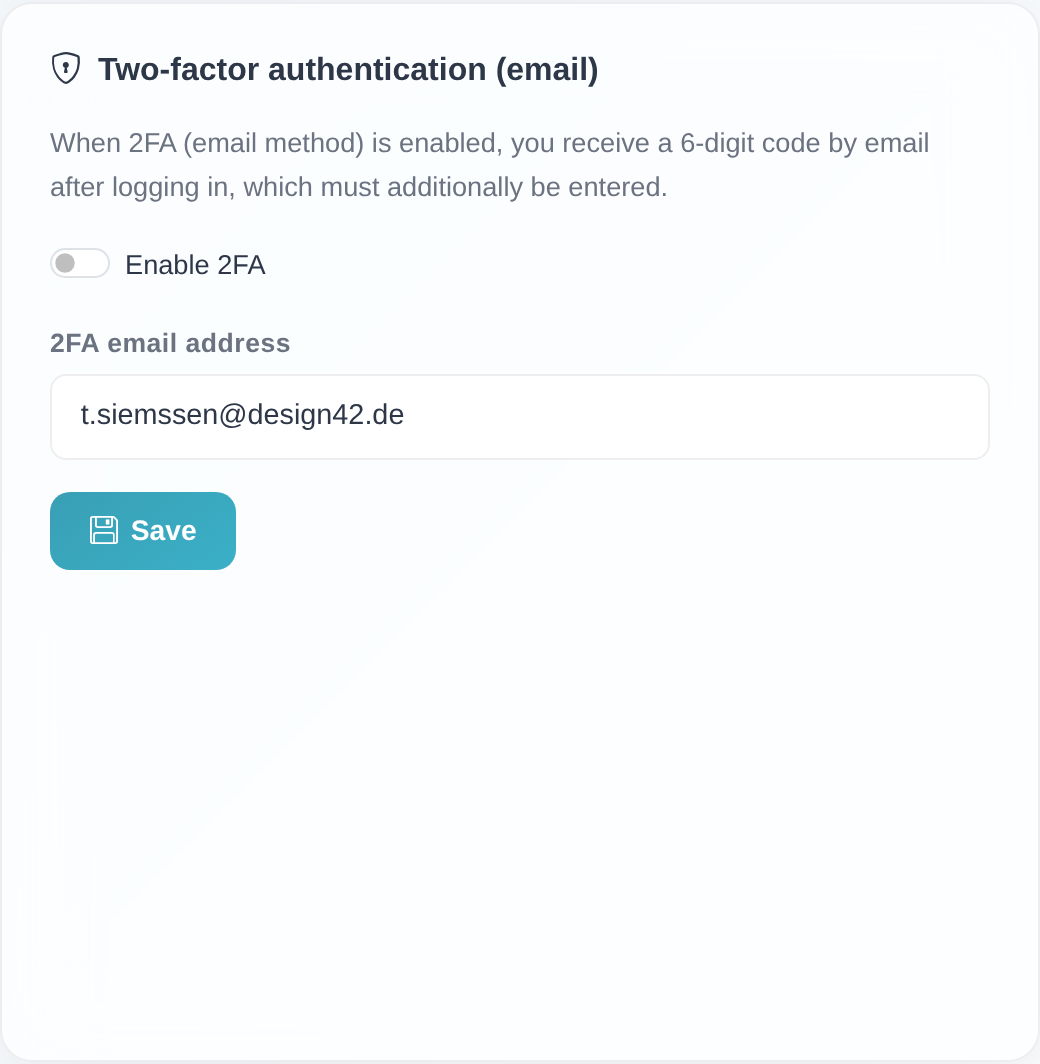 The email method: the “Enable 2FA” switch, the “2FA email address” field and the “Save” button.
Method B – authenticator app (TOTP)
- Open Account & Settings and scroll to the “Two-Factor Authentication (TOTP App)” card.
- Click “Set up TOTP”. The system generates a secret; the notice “Secret generated. Scan the QR code and enter the first code to confirm.” appears.
- Open your authenticator app and scan the QR code shown – or, if the QR code cannot be scanned, type the value next to “Manual secret key:” into the app by hand.
- The app now shows a six-digit code. Enter this first code in the input field and click “Confirm”.
- If the code is correct, the message “TOTP activated successfully. Your authenticator code will be required on next login.” appears and the status changes to “TOTP is active. You will be asked to enter a code at your next login.”
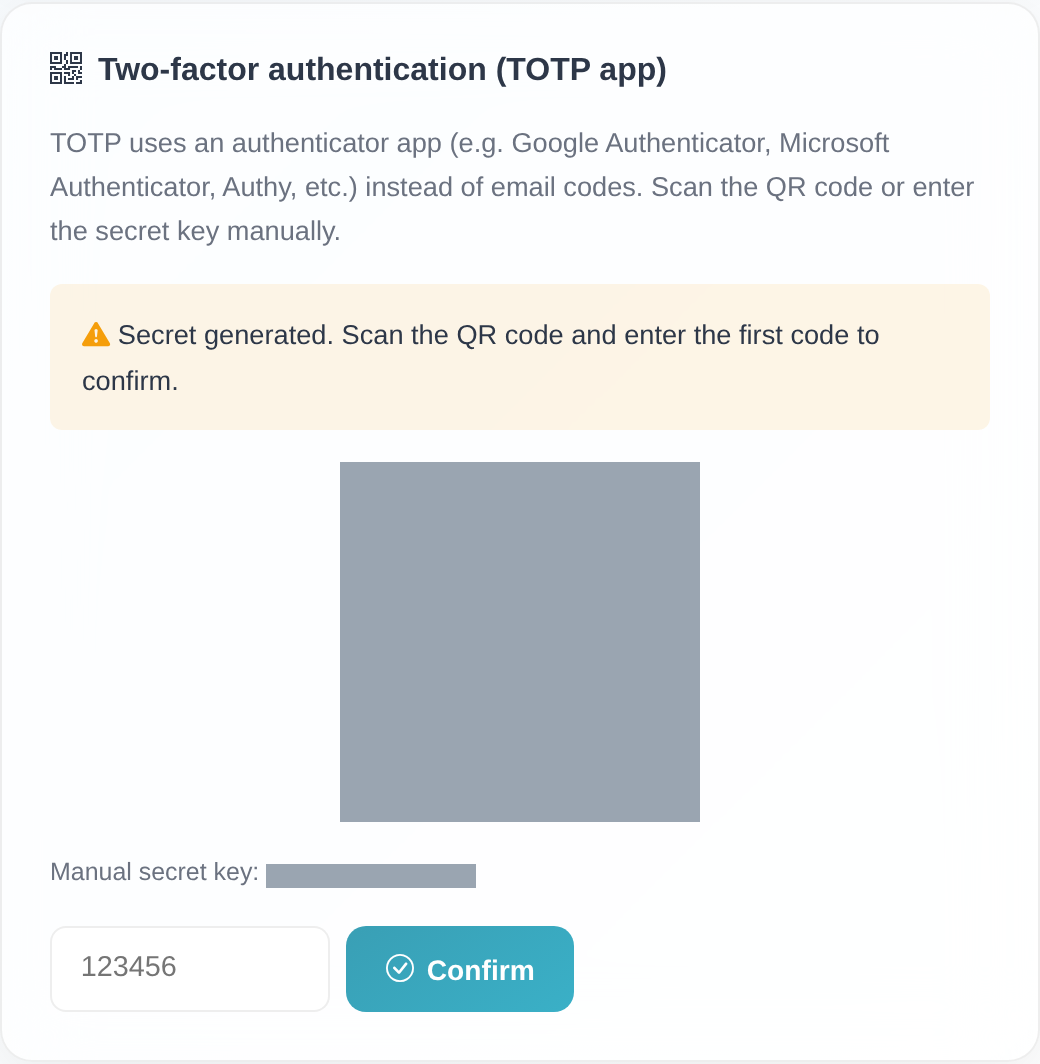 The authenticator app method. Note: the QR code and “Manual secret key” are blurred in this image for security reasons – never share your own secret with anyone.
Switching between email code and authenticator app
You can switch between the two methods at any time – without deactivating the active method first. Only one method stays active at a time.
- From the authenticator app to email code: while TOTP is active, the “Two-Factor Authentication (Email)” card shows the notice “The authenticator app (TOTP) is your active second factor. You can switch directly to email codes here – the app will be replaced as your factor.” Enter the desired email address and click “Switch to email code”. The app is replaced as your factor; no separate deactivation is needed.
- From email code to the authenticator app: while email 2FA is active, the “Two-Factor Authentication (TOTP App)” card shows the notice “Email 2FA is your active second factor. You can switch directly to the authenticator app here – after successful code confirmation the app takes over as your second factor.” Set up TOTP as described under Method B (generate the secret, confirm the first code). After confirmation, the app takes over as your second factor.
When 2FA is mandatory for your account
For some accounts, two-factor authentication is mandatory (for example at your company’s request). When the 2FA requirement is active and no 2FA is set up yet for your access, the portal enforces the setup:
- Warning banner on the dashboard: a notice appears at the top, “Two-factor authentication required”, with the text “Two-factor authentication is mandatory for your company. Please set it up now (via e-mail code or authenticator app) – the customer area becomes fully available afterwards.” and the link “Set up 2FA now”.
- Portal locked until setup: until 2FA is set up, only the dashboard with the 2FA cards is reachable. All other pages lead back to the 2FA setup.
- Confirmation code for the email method: if you set up the email method for the first time while the 2FA requirement is active, it does not become active immediately. The system first sends a confirmation code to the address: “A confirmation code has been sent to {email} (valid for 10 minutes). 2FA becomes active only after confirmation. No code received? Save the address below again.” Enter the code and click “Confirm code”. Only then is 2FA active – the message “Email 2FA confirmed and activated. A code will be sent to your address on your next login.” appears. The code is valid for 10 minutes.
- Deactivation blocked – switching allowed: while the 2FA requirement is in effect, 2FA cannot be turned off. Attempting to do so reports: “Two-factor authentication is mandatory for your company and cannot be disabled. You can switch between e-mail code and authenticator app.” So you can still switch the method, just not turn 2FA off entirely.
Good to know
- Only one method active at a time – switch without deactivating. Only one method is active as your second factor, but you can switch directly between the two. While TOTP is active, the email card shows the notice “The authenticator app (TOTP) is your active second factor. You can switch directly to email codes here – the app will be replaced as your factor.” Conversely, while email 2FA is active, the TOTP card shows “Email 2FA is your active second factor. You can switch directly to the authenticator app here – after successful code confirmation the app takes over as your second factor.” For details, see Switching between email code and authenticator app.
- TOTP can be turned off again. While TOTP is active, the TOTP card offers the “Deactivate TOTP” button. After that you can set up the email method again – or switch directly via “Switch to email code”. Exception: if 2FA is mandatory for your account, 2FA cannot be turned off (a method switch is still possible).
- The QR code and secret are confidential. The secret key is your second factor. Do not pass it on and do not photograph the QR code for others. That is why both are masked in the help screenshots.
- Not for test accounts. For test accesses (prefix
TEST), the 2FA cards are not shown. - A daily sign-in step. Once 2FA is active, the system asks for the code at every sign-in. To see what that looks like day to day, read Logging in with a two-factor code.
Frequently asked questions
What is the difference between the email method and the authenticator app method? With the email method, the system sends a six-digit code to your stored 2FA email address at every login. With the authenticator app (TOTP), an app on your smartphone (e.g. Google Authenticator, Microsoft Authenticator or Authy) generates the code, with no email needed. You only ever use one of the two methods.
Can I enable both methods at the same time? No. Only one method is active as your second factor. But you do not have to deactivate the other one first – the switch happens directly from the relevant card (see Switching between email code and authenticator app).
How do I switch between email code and authenticator app? Directly, without deactivating the active method first. If the app is active, click “Switch to email code” in the email card. If the email method is active, set up the app in the TOTP card (generate the secret, confirm the first code).
Do I have to set up 2FA? Only if 2FA is mandatory for your account. In that case the portal enforces the setup: the banner “Two-factor authentication required” appears, and until setup is complete only the dashboard with the 2FA cards is reachable. If 2FA is not mandatory, setting it up is optional but recommended.
Can I turn 2FA off again? Only if 2FA is not mandatory for your account. If it is mandatory, the portal reports when you try to deactivate it: “Two-factor authentication is mandatory for your company and cannot be disabled. You can switch between e-mail code and authenticator app.” You can then only switch the method, not turn 2FA off entirely.
Which authenticator apps are supported? Any common TOTP app, for example Google Authenticator, Microsoft Authenticator or Authy. Scan the QR code or enter the “Manual secret key”.
The QR code won’t scan. What do I do? Instead, type the value next to “Manual secret key:” into your authenticator app by hand. The app then generates the six-digit code as usual.
Why are the QR code and secret key blurred in the help screenshots? The secret key is your second factor. For security reasons, the QR code and secret are masked in the screenshots; you must never share your own secret.
How do I turn the authenticator app off again? In the “Two-Factor Authentication (TOTP App)” card, click “Deactivate TOTP”. If you only want to switch to the email method, you can also do that directly via “Switch to email code” in the email card. If 2FA is mandatory for your account, 2FA cannot be turned off entirely – you can then only switch the method.
Can I set up 2FA for my test account?
No. For test accesses (customer number with the prefix TEST), the 2FA cards are not shown.
Requirements
- A signed-in main access or additional access. 2FA is not available for test
accounts (customer number with the prefix
TEST) – the two cards are not shown there. - For the email method: a valid email address to which the code is sent.
- For the authenticator app method: a TOTP app on your smartphone, e.g. Google Authenticator, Microsoft Authenticator or Authy.
Important: only one method is active as your second factor at a time – email or the authenticator app. You do not have to deactivate the other method first: the switch happens directly (see Switching between email code and authenticator app).
Related articles
Last reviewed: