
Signing in to the customer portal
You sign in to the easycompliance customer portal with your customer number and your password. You then reach your dashboard, from where you run individual checks, manage your monitoring and assess hits.
Step by step
- Open the sign-in page: https://kunde.easycompliance.de.
- Optional: choose your language at the top – 🇩🇪 Deutsch or 🇬🇧 English.
- In the “Customer Number” field, enter your number (numeric only, e.g.
1000or1000001). Test accesses start with the prefixTEST(e.g.TEST1000). - In the “Password” field, enter your password.
- Click “Sign In”.
- You are redirected:
- without two-factor authentication, straight to your dashboard;
- with two-factor authentication, to enter your security code (see Logging in with a two-factor code).
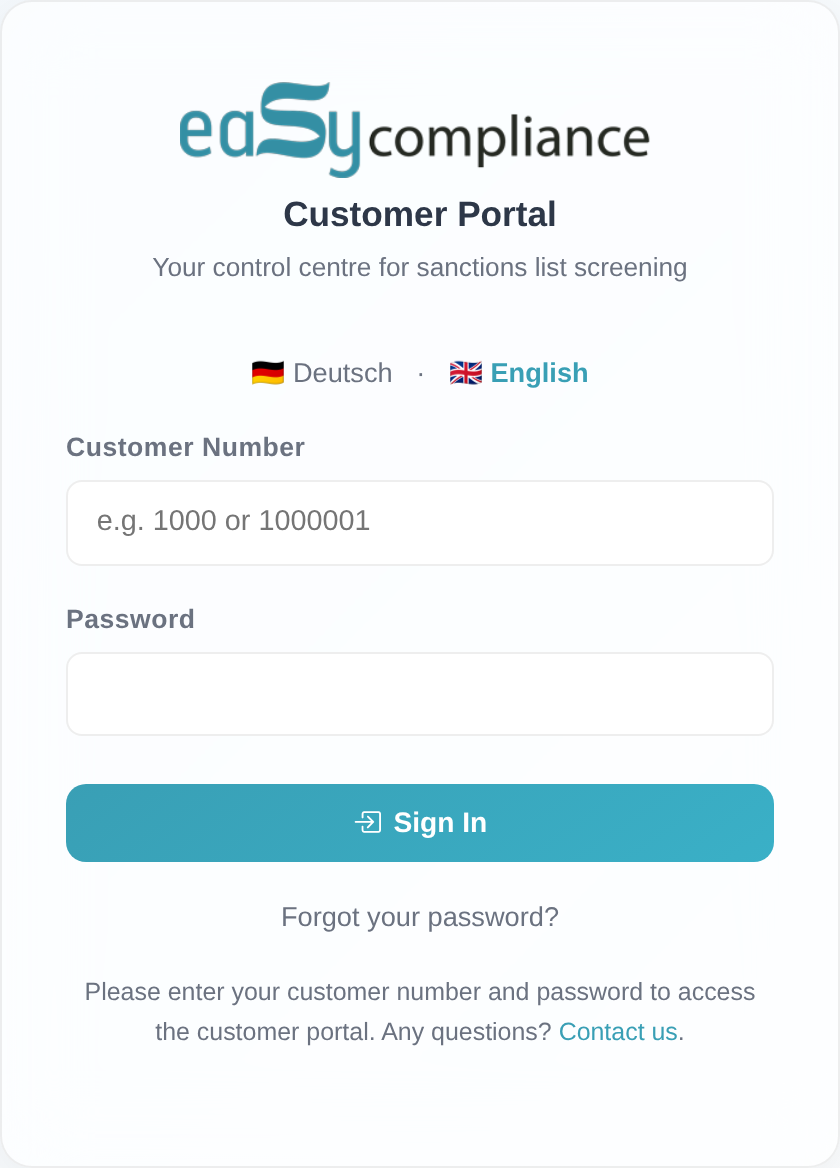 The sign-in page with the language switcher, the “Customer Number” and “Password” fields and the “Sign In” button.
Good to know
- Three kinds of access:
- Main access – your company’s customer number (the customer).
- Additional access – an extra staff login with its own customer number (e.g.
1000001) and its own permissions. Which features an additional access sees depends on its permissions. - Test account – a time-limited trial access (customer number with the prefix
TEST).
- Enabled modules (sanctions lists, PEP, Dow Jones) depend on your plan and are the same for all accesses of the same customer.
- Your language choice is remembered: your selection (German/English) is kept even after you sign out.
- Security: after several failed attempts, sign-in is locked for a short time. What to do then is described in Fixing login problems.
Frequently asked questions
Which customer number do I enter?
The customer number from your contract or onboarding. If you were set up as an additional
staff member, use your own customer number (e.g. 1000001), not the main number.
I no longer know my password. Use the “Forgot your password?” link on the sign-in page. The steps are described in Resetting a forgotten password.
Can I change the language? Yes. At the top of the sign-in page, choose between 🇩🇪 Deutsch and 🇬🇧 English. The selection also applies after you sign in.
The sign-in won’t submit / an error message appears. See Fixing login problems – it lists every message and its solution.
Requirements
- Your customer number and your password. You receive both during onboarding or from our customer service. Additional staff logins (additional accesses) each have their own customer number and password.
Related articles
- Fixing login problems
- Resetting a forgotten password
- Logging in with a two-factor code
- Understanding the dashboard
Last reviewed: