
Switching tenants as a manager
If you use a manager access to look after several tenants (customers), you switch the currently displayed tenant directly in the top bar – without signing in again. The view then shows the monitoring, hits, modules and quota of the selected tenant.
Step by step
- Sign in to the customer portal as usual (see Signing in to the customer portal).
- At the top of the page, open the selection dropdown for switching tenants in the top bar. The icon carries the label “Switch Tenant”; the heading inside the opened menu reads “Switch Client”.
- Choose the tenant you want from the list. Each entry shows the customer number and – if stored – the company name in parentheses.
- The view switches to the data of the selected tenant. The currently active tenant is marked with a check mark in the menu.
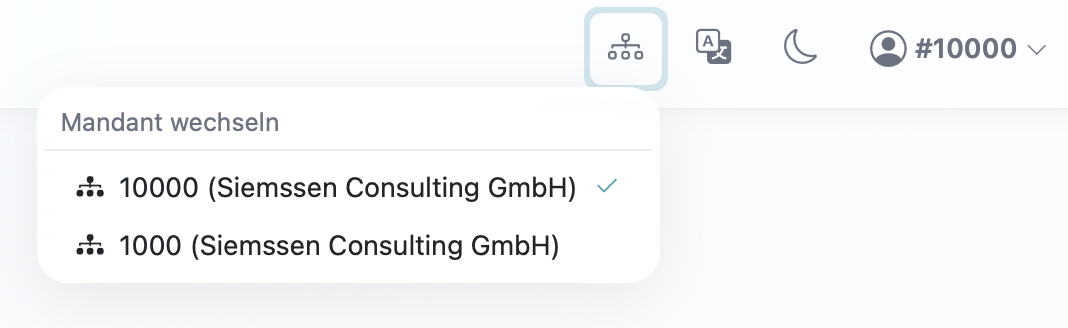
The tenant dropdown in the top bar: each entry shows the customer number and company name, and the active tenant is marked with a check mark.
Good to know
- Only visible with several tenants: the dropdown appears only when your manager access is assigned to several tenants. If you look after just one tenant, you will not see it.
- Data and modules follow the tenant: after switching, the enabled modules (sanctions lists, PEP, Dow Jones), the monitoring, the hits and the quota all follow the selected tenant.
- Your permissions stay the same: switching does not change your own permissions, only which data and modules you currently see.
- Your display name is kept: the user dropdown in the top bar still shows your own name – for example “Logged in as {name} in client” above the customer number and company name of the active tenant.
- No second sign-in needed: the tenant switch happens within the same session.
Frequently asked questions
I don’t see a selection dropdown in the top bar. The dropdown appears only for manager accesses that are assigned to several tenants. If your access is assigned to just one tenant, there is nothing to switch. If your access should look after additional tenants, please contact customer service.
How do I tell which tenant is currently active? In the opened tenant dropdown, the active tenant is marked with a check mark. In addition, the user dropdown in the top bar shows the customer number and company name of the currently active tenant.
Do my permissions change when I switch? No. Your own permissions stay the same. Only the data and the enabled modules change – these follow the selected tenant.
Do I have to sign in again after switching? No. The switch happens within the same session; signing in again is not required.
Requirements
- A manager access that is assigned to several tenants. Only then does the selection dropdown appear in the top bar. If your access is assigned to just one tenant, the dropdown is not shown.
Related articles
Last reviewed: