
Changing your password in the customer portal
While you are signed in, you change your password directly in the customer portal using the “Change Password” card. You enter your current password and your new password twice, then save – the new password applies immediately afterwards.
Step by step
- Sign in to the customer portal and open the settings area of your dashboard via the “Settings” link in the sidebar.
- Find the card headed “Change Password”. The note below it reads: “At least 8 characters.”
- In the “Current Password” field, enter your current password.
- In the “New Password” field, enter your new password.
- Repeat it in the “Confirm Password” field.
- Click “Change Password”.
- On success you see the confirmation “Your password has been changed successfully.” From this moment on, only the new password applies.
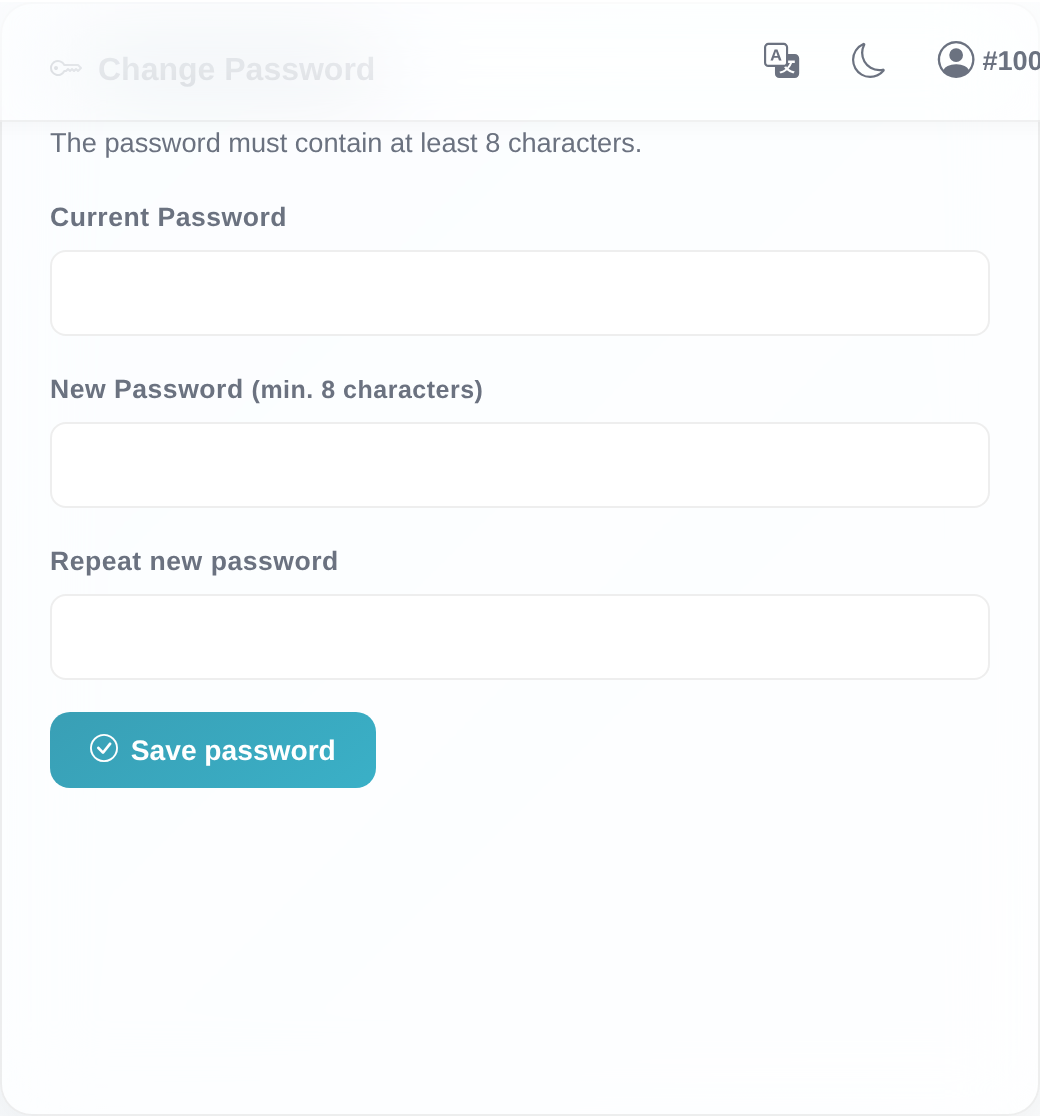 The “Change Password” card with the three password fields and the “Change Password” button.
Good to know
- The new password applies immediately. After saving, the old password no longer works – not even in browsers that are already open or on other devices. From now on, use the new password everywhere.
- Minimum length is 8 characters. A new password shorter than 8 characters is rejected.
- Both new-password fields must match. This catches typos before saving.
- Each access has its own password. You only change it for the access you are currently signed in with. Additional accesses (with their own customer number) change their password themselves in the same way.
- Difference from “forgot password”: the “Change Password” card requires that you are signed in and know your current password. If you cannot sign in, reset without signing in is the right path – see Resetting a forgotten password.
Frequently asked questions
Where do I change my password when I am signed in? In your dashboard, using the “Change Password” card. You reach it via the “Settings” link in the sidebar.
Which error message appears if my current password is wrong? You see “The current password is incorrect.” Check your entry in the “Current Password” field and try again.
My new password is rejected as too short. Then the system reports “The new password must be at least 8 characters long.” Choose a password with at least 8 characters.
What does “The new passwords do not match.” mean? The entries in “New Password” and “Confirm Password” are not the same. Enter the same new password in both fields.
Does my old password still work after the change? No. After “Your password has been changed successfully.”, only the new password is valid, immediately.
I cannot sign in at all – can I use this? No. The “Change Password” card requires you to be signed in. Without a login, use the reset instead – see Resetting a forgotten password.
Requirements
- You are signed in to the customer portal and know your current password. If you no longer know your password and therefore cannot sign in, use Resetting a forgotten password instead (reset without signing in).
- The new password must be at least 8 characters long.
Related articles
Last reviewed: