
Resetting a forgotten password
If you no longer know your password for the easycompliance customer portal, you can reset it yourself. The process has two phases: first you request a reset link on the sign-in page, then you set a new password via that link.
Step by step
Phase 1 – Request a reset link
- Open the sign-in page: https://kunde.easycompliance.de.
- Below the sign-in form, click the “Forgot your password?” link.
- In the “Customer Number” field, enter your number (e.g.
12345). Above the form you will see the note: “Enter your customer number and a registered email address.” - In the “Email Address” field, enter the address you registered with us.
- Click “Request Reset Link”.
- The confirmation appears: “We have sent a password reset link to the email address you provided.”
- Check your mailbox. Note the hint: “Please check your inbox (and spam folder). The link is valid for 60 minutes.”
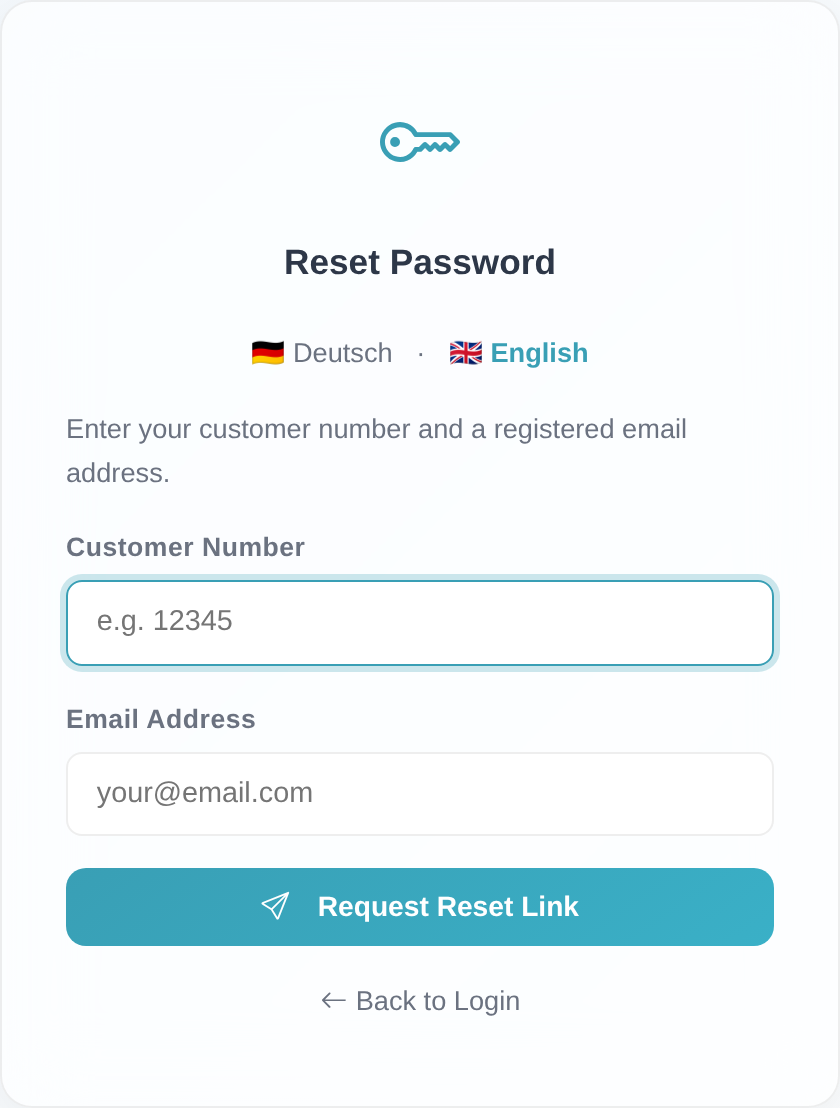 Phase 1: the “Reset Password” form with the “Customer Number” and “Email Address” fields and the “Request Reset Link” button.
Phase 2 – Set a new password
- Open the link from the email “Reset Your Password – easycompliance”. The form “Enter your new password below.” appears.
- In the “New Password” field, enter your new password (at least 8 characters).
- Repeat it in the “Repeat Password” field.
- Click “Save Password”.
- The confirmation appears: “Your password has been changed successfully. You can now log in.”
- Click “Back to Login” and sign in with your customer number and your new password.
Good to know
- Privacy – always the same confirmation: for security reasons, the system does not reveal whether an account exists. If the combination of customer number and email address does not match, you instead see: “The combination of customer number and email address was not found. Please contact our Customer Service.”
- The link is valid for 60 minutes. After that: “The link is valid for 60 minutes. After this time you will need to request a new reset link.” An expired or already-used link shows: “This reset link is invalid or has expired. Please request a new one.” – simply request a new link.
- Test accounts: if your customer number starts with the prefix
TEST, the self-service reset is intentionally blocked. You will see: “Password reset via this form is not available for test accounts. Please contact our support or your onboarding contact.” - Additional accesses: each access has its own customer number and its own registered email address. Reset the password for the affected customer number in each case.
- Minimum length 8 characters: a password that is too short is rejected: “The new password must be at least 8 characters long.” If the two entries differ: “The two passwords do not match.”
- Difference from “changing your password”: this process is only for when you no longer know your password. If you are already signed in and simply want to switch your password, use Changing your password.
Frequently asked questions
I didn’t receive an email – what now? First check your spam folder. The link is valid for 60 minutes. For privacy reasons, the same confirmation always appears – even when the customer number and email address do not match. Make sure you use exactly the address you registered for your customer number, and otherwise request the link again.
Which email address do I enter? The email address registered for your access. The reset link is sent only to that address. You can see which address notifications go to in your account data.
My reset link no longer works. It has most likely expired (60 minutes) or has already been used. You will see: “This reset link is invalid or has expired. Please request a new one.” Simply request a new link via “Forgot your password?”.
I have a test account and can’t reset my password.
For test accounts (customer number with the prefix TEST), the self-service reset is blocked.
Please contact our support or your onboarding contact.
I’m signed in and just want to switch my password. Then you don’t need a reset link. Change your password directly while signed in – see Changing your password.
Requirements
- Your customer number (numeric only, e.g.
1000or1000001). - A registered email address for your access. The reset link is sent only to that address.
- Test accounts (customer number with the prefix
TEST) cannot reset the password via this form – see Good to know.
Related articles
Last reviewed: