
PEP individual check: screening a name against the PEP database
The PEP individual check lets you screen a single name on the fly – a person or a company – against the PEP database. PEP stands for politically exposed persons: people who hold or have held a prominent public office, together with their close circle (family members and known associates). You see the result on screen immediately: a red block for hits, a green block when nothing was found. You can then archive the result.
Step by step
- From the menu, open “Run Individual Check” under PEP. You land on the “PEP Individual Check” page.
- In the “Name / Company to Check” field, enter the name. Enter the name only –
without titles, salutations or additions. For persons, use the format First Name Last
Name (e.g.
Max Mustermann). - If needed, under “Search Pattern” choose the required percentage of agreement (e.g. “100 % (Exact)”, “90 %”, “80 %”) or “Any Name Part”. The lower the percentage, the more similar spellings are found.
- If needed, set “Name Variants” to “Yes” to also check reordered (permuted) versions of the name.
- Click “Check”. While the search runs, “Please wait…” appears briefly.
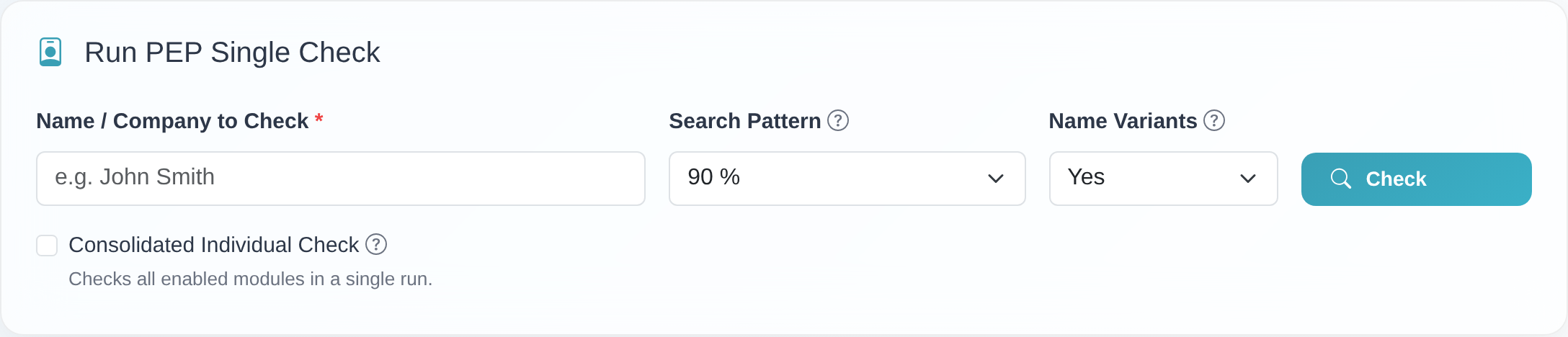 The PEP individual-check search form with the “Name / Company to Check”, “Search Pattern” and “Name Variants” fields and the “Check” button.
- Read the result:
- Red block – “PEP hit found!”: your search returned hits in the PEP database. Each hit shows the percentage of agreement (“% agreement”) and a detail card with fields such as “Title”, “Gender”, “First name”, “Last name”, “Other names”, “Date / place of birth”, “Origin”, “Address”, “Function” (the person’s office or position) and – where present – “Related persons” (connected people such as family members).
- Green block – “No Hits Found”: your search returned no hits in the PEP database for the search pattern you chose.
- Assess every hit on its merits. Use the displayed fields – in particular “Function”, “Date / place of birth” and “Related persons” – to check whether the hit really matches the person you are screening before you make a decision.
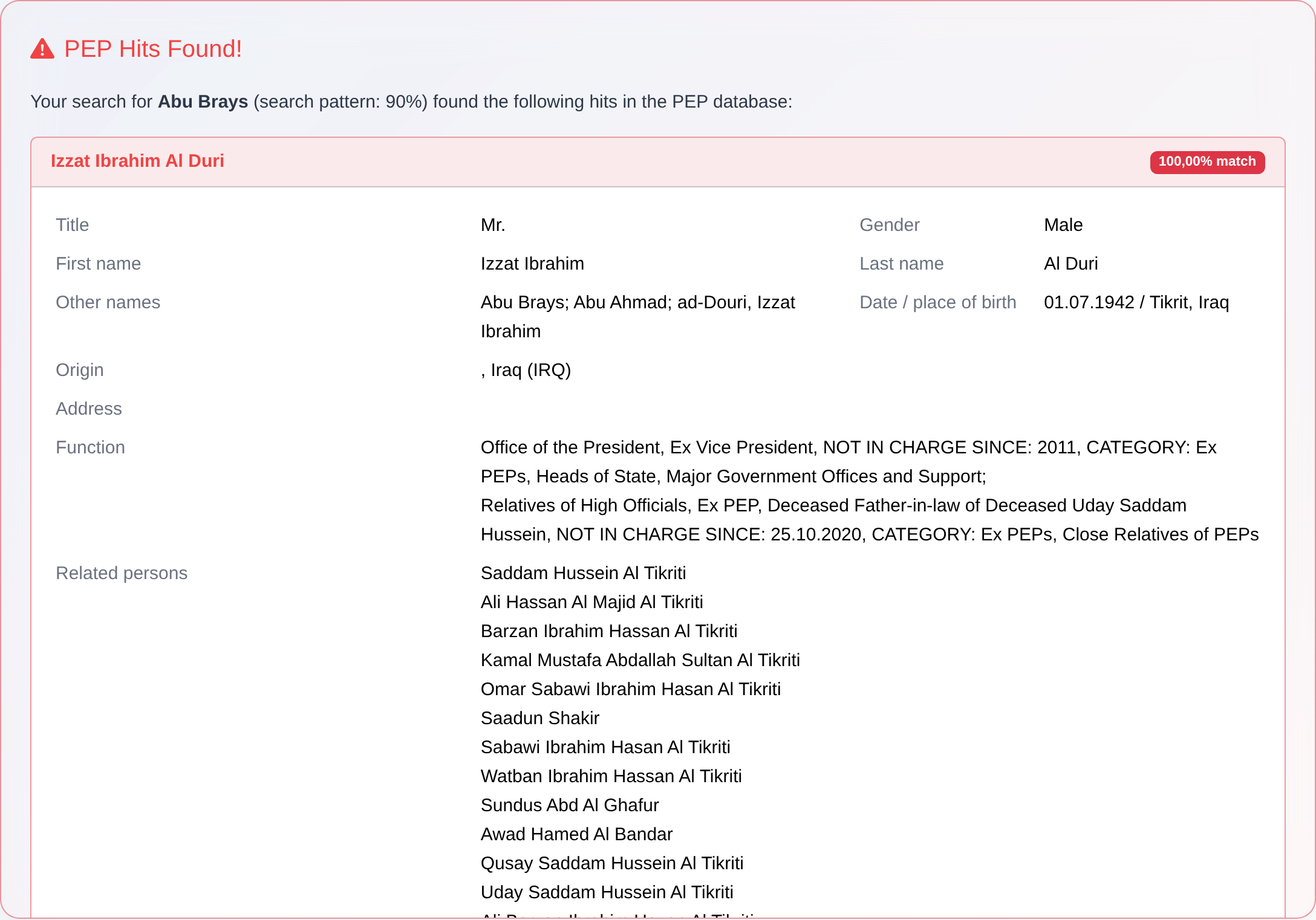 Hit display: red “PEP hit found!” block with the percentage of agreement and detail fields such as “Function” and “Related persons”.
- Keep the result: use “Print” or “PDF” (the “Protocol:” section) to create a screening protocol. With “Archive Result” (the “Save Check” section) you store the result – optionally with “Your Reference” and “Comment” – in the PEP archive. Use “To Archive Overview” to jump straight to the archive. See Archive a result & add to monitoring.
- Optionally add to PEP monitoring: if PEP list screening is available to you, the field “Add name to PEP list screening?” appears when archiving. Choose “Yes” to have the name continuously screened against the PEP database. Once it is added, the message confirms: “The name was imported into monitoring (list screening).” If a duplicate is detected, the message instead reads: “The name was not imported into monitoring because a duplicate was detected.”
Good to know
- What are PEPs? Politically exposed persons are people who hold or have held a prominent public office (e.g. heads of state, ministers, members of parliament, judges of supreme courts). Business relationships with PEPs are subject to enhanced due-diligence obligations under anti-money-laundering law (GwG §15). The database also includes close family members and known associates – these appear in the hits under “Related persons”.
- Module-neutral operation: the individual check works the same way for all modules. If further modules are active (sanctions lists, Dow Jones), you can screen the same name afterwards via “Run Another Individual Check” or – where available – in a single pass with the “Consolidated Individual Check” (“Checks all enabled modules simultaneously”).
- Minimum length: if the name is shorter than 4 characters (excluding spaces), the message appears: “The entered name is too short (minimum 4 characters without spaces).”
- Search pattern
100 % (Exact)returns only exact name matches; lower values are more tolerant of spelling differences. “Any Name Part” checks individual parts of the name. - Pre-filled name: if you open the PEP individual check from a saved record, from the PEP monitoring list or from another individual check, the name field is already filled in.
Frequently asked questions
What does “PEP” mean? PEP stands for politically exposed persons – people in prominent public offices (e.g. ministers, members of parliament, judges of supreme courts) and their close circle (family members and known associates). Business relationships with PEPs are subject to enhanced due-diligence obligations under anti-money-laundering law (GwG §15).
What do the red and green blocks in the result mean? A red block (“PEP hit found!”) shows hits in the PEP database, each with a percentage of agreement and a detail card. A green block (“No Hits Found”) means there are no hits for the search pattern you chose.
Which details do I see for a PEP hit? The detail card shows, among other things, “Title”, “Gender”, “First name”, “Last name”, “Other names”, “Date / place of birth”, “Origin”, “Address”, the “Function” (office or position) and – where stored – the “Related persons” (connected people such as family members). Use these fields to judge whether the hit matches the person you are screening.
The PEP module is not enabled – what do I do? If the message “This module is not enabled for your account.” appears, the PEP module is not active for your access. Contact customer service to have it enabled.
My name is rejected as “too short”. The name must contain at least 4 characters excluding spaces. Enter a more meaningful or longer name.
How do I add a screened name to ongoing PEP monitoring? When archiving, set the field “Add name to PEP list screening?” to “Yes”. The name is then continuously screened against the PEP database. More on this in Archive a result & add to monitoring.
How do I keep the result? Use “Print”/“PDF” for a protocol, or “Archive Result” to store it permanently in the PEP archive and optionally add it to monitoring.
Requirements
- An access with the PEP module enabled. If the module is not enabled for your account, the message “This module is not enabled for your account.” appears. You can have it enabled through customer service.
- The name you check must be at least 4 characters long (excluding spaces).
Related articles
Last reviewed: