
Viewing, re-running, printing/exporting and deleting archived individual checks
The archive lists your saved individual checks – separated by module (sanctions lists, PEP, Dow Jones). From there you can re-run any entry, print the screening protocol or save it as a PDF, and delete entries you no longer need. This article describes the procedure in a module-neutral way; the steps are identical across all three archives.
Step by step
- In the left-hand menu, open “Archived Individual Checks”. You will find the entry under the respective module – under sanctions lists, under PEP, and under the desired Dow Jones module (MAE, TRAE or SCO).
- The table lists your checks with the columns “Date”, “Name”, “Result”, “Comment” and “Actions”. Use the search box to find individual names; click the column headers to sort the table.
- In the “Result” column, an icon shows the outcome: a green check mark for “No hit”, a red exclamation mark for “Hit found”.
- The “Actions” column offers four buttons per entry (labelled via mouse tooltip):
- “Re-run check” – screens the same name again against the current lists.
- “Print” – opens the screening protocol in a new tab (see below).
- “Save as PDF” – downloads the protocol directly as a PDF file.
- Delete (trash icon) – removes the entry after a confirmation prompt.
- Deleting with confirmation: when you click the trash icon, the “Delete entry” dialog appears asking “Do you really want to permanently delete this archived entry?”. Confirm with “Delete” or cancel with “Cancel”. After a successful deletion, “Entry deleted.” briefly appears at the top.
- Yearly statistic: below the table you can see how many checks you have run in this module during the current year, e.g. “Individual checks performed this year:”.
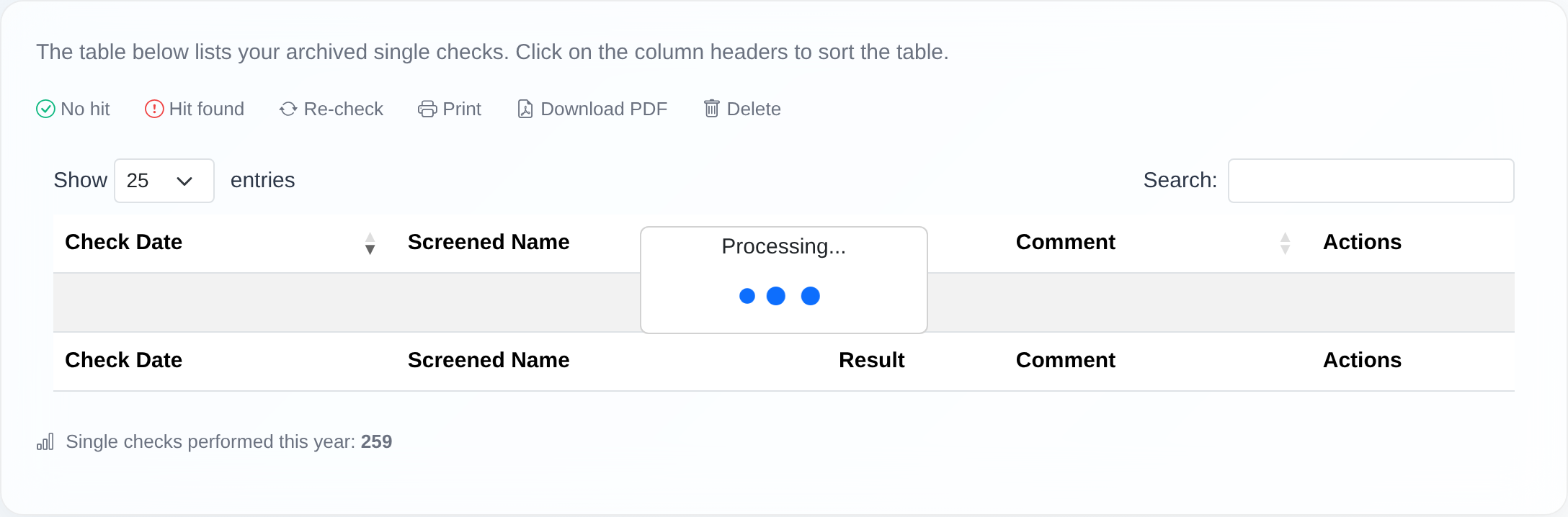 The archive table with search box, sortable columns and the action buttons per entry.
Printing and saving as PDF
- “Print” opens the screening protocol in a new browser tab (page title “Screening Protocol” followed by the Check ID). The “Print” button on that page opens your browser’s print dialog; “Save as PDF” downloads the same protocol as a file.
- What the protocol contains: the screening company (your company name and address), the “Screened Name”, a unique “Check ID”, the “Checked Lists” and a legal closing text (disclaimer). The note reads: “The Check ID allows the result to be uniquely assigned, traced and validated.”.
- Check ID per module: sanctions lists e.g.
EP123, PEP e.g.PEP-EP123, Dow Jones e.g.DJMAE-EP123. When you download the PDF, the file name contains the Check ID (e.g.EP123.pdf).
Good to know
- Test accounts cannot print or export. If you try, the message “Test account users cannot print or export results.” appears, noting that the sanctions lists in the test account are significantly outdated and incomplete.
- You only see your own records. A foreign or unassigned entry results in the print message “Record not found or no access.”.
- Deletion is permanent. A deleted archive entry cannot be restored – check whether you still need the protocol as a PDF before deleting.
- Each module has its own archive. Sanctions list, PEP and Dow Jones checks are kept separately; in the Dow Jones area, use the quick navigation to switch between MAE, TRAE and SCO.
- If deletion fails, “Error while deleting.” appears; for connection problems, “Network error. Please reload the page.”.
Frequently asked questions
How do I open the archive of my individual checks? Via the “Archived Individual Checks” menu entry for the respective module (sanctions lists, PEP or Dow Jones). The table shows all saved checks for that module.
How do I print a screening protocol or save it as a PDF? In the table’s “Actions” column, click “Print” (opens the protocol in a new tab) or “Save as PDF” directly (downloads the PDF file). The PDF file name contains the Check ID.
Can I restore an archived entry after I have deleted it? No. Deletion is permanent. Save the protocol as a PDF beforehand if you still need it.
Why can’t I print from my test access? Test accounts are excluded from printing and exporting. The message “Test account users cannot print or export results.” appears, because the test data is not representative.
What does the Check ID on the protocol mean? It is the unique identifier of the check. The Check ID allows the result to be uniquely assigned, traced and validated; it also appears in the PDF file name.
Do I also see checks run by my colleagues? No. In the archive you only see the records belonging to your own access.
Requirements
- Permission to view archived individual checks. Without it, the message “You do not have permission to view archived checks.” appears (in the German interface: „Sie haben keine Berechtigung, archivierte Prüfungen anzusehen.").
- For the PEP or Dow Jones archive, the respective module must be enabled for your account. Otherwise the message “This module is not enabled for your account.” appears.
- You only ever see the records belonging to your own access.
Related articles
Last reviewed: