
Deleting records via file import
Deleting via file import lets you remove many records from your monitoring list at once: you upload a CSV, TXT or Excel file, map the matching column, and the system removes the matching entries. The process runs in the background; once it finishes you receive a confirmation email.
Caution: Deleting records cannot be undone. Check the column mapping carefully before you continue.
Step by step
- In your monitoring list, open “Delete data (via import)”. You land on the “Delete records via CSV import” page.
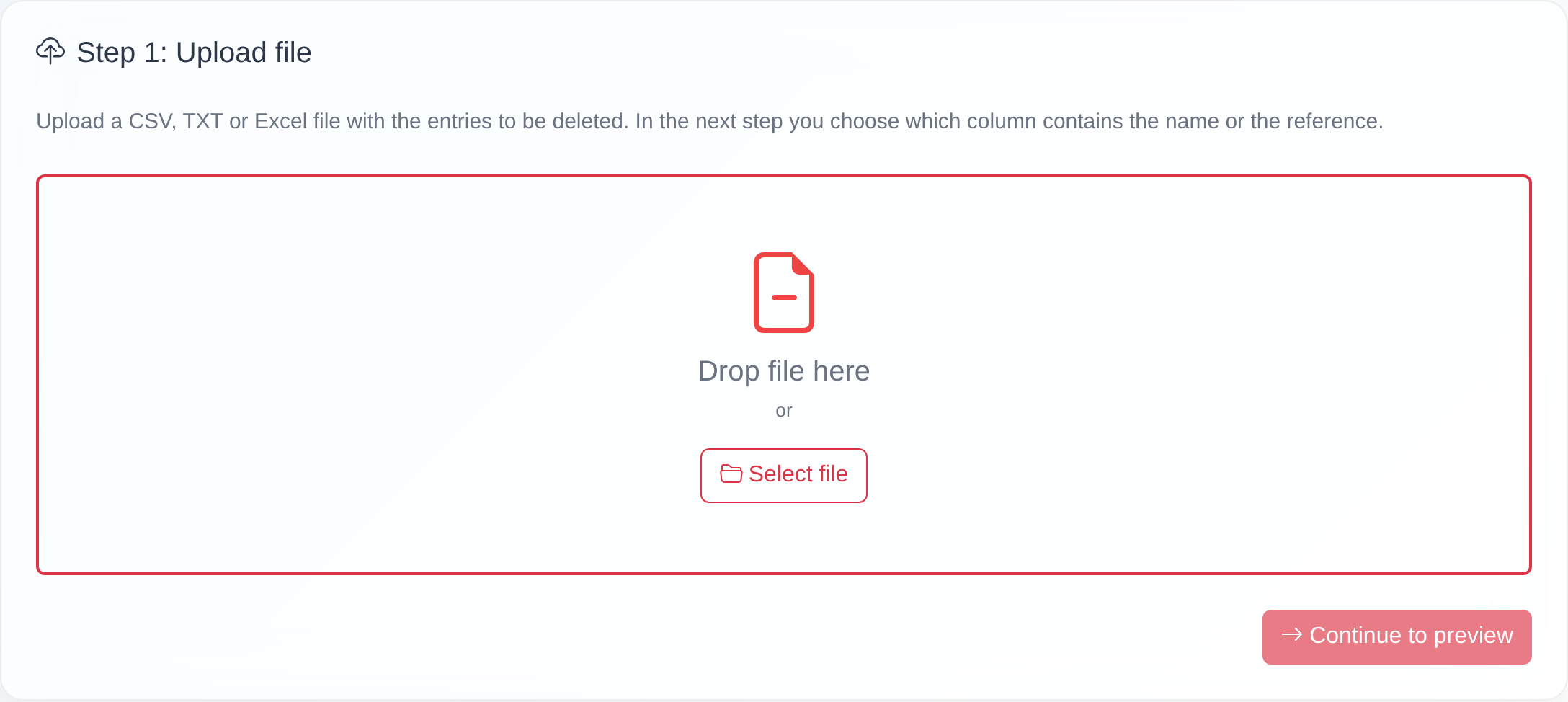
- Step 1 – Upload file: drag your file into the “Drop file here” area or click “Select file”. The file is analysed automatically; Excel files are converted to CSV during this step.
- Step 2 – Preview & options: a “Preview (first 10 rows)” appears. Under
“Delete by:”, choose how the records should be found:
- Name (default) – records are deleted by name.
- Reference – records are deleted by reference. The reference must be present both in the import file and in the existing data in easycompliance.
- Map columns: under “Column mapping”, specify which column contains the name (“Name column”). If first and last name are separate, choose “Combine columns” and map both columns (they are joined with a space). If the first row is a header row, leave “First row is a header” enabled.
- In “Reference” mode the reference column is mandatory: under “Reference column”, select the matching column. If it is missing, the notice “To delete by reference, you must select a reference column.” appears and the process does not start.
- Click “Prepare deletion”. The confirmation dialog “Prepare deletion” opens with the text “Do you really want to prepare the deletion? The records will be permanently and irreversibly deleted.”
- Confirm with “Prepare deletion” (or stop with “Cancel”).
- Step 3 – Result: you see the confirmation “Deletion prepared”. Your file is processed automatically within the next few minutes; afterwards you receive a confirmation email with the details of the deletion.
 Step 2 of the deletion: choose “Delete by” name or reference, map the columns and continue with “Prepare deletion”.
Good to know
- Deletion is final. Unlike editing in the list, there is no undo here. When in doubt, upload a small test file first.
- Deleting is not importing. This process removes records. To add new records, use the regular file import (Importing records from a file).
- “Name” vs. “Reference” mode: in reference mode, deletion happens solely by reference – the reference must be identical in the import file and in your stored data. In name mode, deletion happens by name.
- Combine columns: if first and last name are in separate columns, map both via “Combine columns”; they are joined with a single space.
- Asynchronous processing: after you submit, nothing changes visibly in the list right away – the job is processed in the background and confirmed by email.
- Allowed formats and limits: permitted formats are .csv, .txt, .xls and .xlsx. If the file is too large you see “File too large”, and for a wrong format “Invalid file format. Allowed: .csv, .txt, .xls, .xlsx”. If no valid file can be recognised, a notice tells you the file is not a valid CSV, TXT or Excel file.
Frequently asked questions
Can I undo a deletion? No. Deleting records is final and cannot be undone. Check the column mapping and the preview carefully before you click “Prepare deletion”.
What is the difference between “Delete by name” and “Delete by reference”? In “Name” mode, records are deleted by name; in “Reference” mode, by reference. With “Reference”, the reference must be present both in the import file and in the existing data in easycompliance.
Why can’t I start the deletion? If you chose “Reference” but no reference column is mapped, you see “To delete by reference, you must select a reference column.” Select the matching column under “Reference column” and try again.
Are the records deleted immediately? No. After “Prepare deletion”, the process runs in the background. You see the message “Deletion prepared” and receive a confirmation email with the details once it finishes.
I want to add new records, not delete them. This process is not for that. Use the regular file import described in Importing records from a file.
I can’t find the delete-via-import function. Your access is probably missing write permission for lists. Contact your company’s main access or our customer service.
Requirements
- Write permission for lists. Without it you see the message “You do not have permission to edit lists.” Which modules your access may edit depends on your permissions.
- A file containing the entries to delete, in .csv, .txt, .xls or .xlsx format.
Related articles
Last reviewed: