
Fixing login problems
If signing in to the easycompliance customer portal does not work, the sign-in page shows a specific message. This article lists every message verbatim and gives the matching solution for each – so you can get back to your dashboard.
Step by step
Find the message below that appears for you and follow the matching solution.
-
“The combination of customer number and password is invalid. Please try again. If you continue to experience problems logging in, please contact our customer service.”
- Check your customer number and your password for typos. Watch out for upper- and lower-case and for accidental spaces at the beginning or end (e.g. when copying and pasting).
- Use the correct customer number: an additional access (staff login) has its
own customer number (e.g.
1000001) – not the customer number of the main access. - Test accesses start with the prefix
TEST(e.g.TEST1000). - If that does not help, reset your password via the “Forgot your password?” link on the sign-in page (see Resetting a forgotten password).
-
“Your account has been locked. Please contact our customer service.”
- Your account is locked. You can only sign in again once it has been unlocked.
- Contact our customer service – fastest via the chat at the bottom right of the sign-in page (see Good to know).
-
“Too many failed login attempts. Please try again later.”
- For security reasons, sign-in is temporarily locked after several failed attempts.
- Wait about 15 minutes and then sign in again. This time, enter your customer number and password carefully (see point 1).
-
“Your browser is outdated or not fully supported. Display and functionality may be limited. Please update to the latest version of your browser (e.g. Chrome, Firefox, Edge or Safari).”
- This warning appears at the top of the sign-in page when your browser does not fully support the required features.
- Update your browser to the latest version – e.g. Chrome, Firefox, Edge or Safari – and reload the sign-in page.
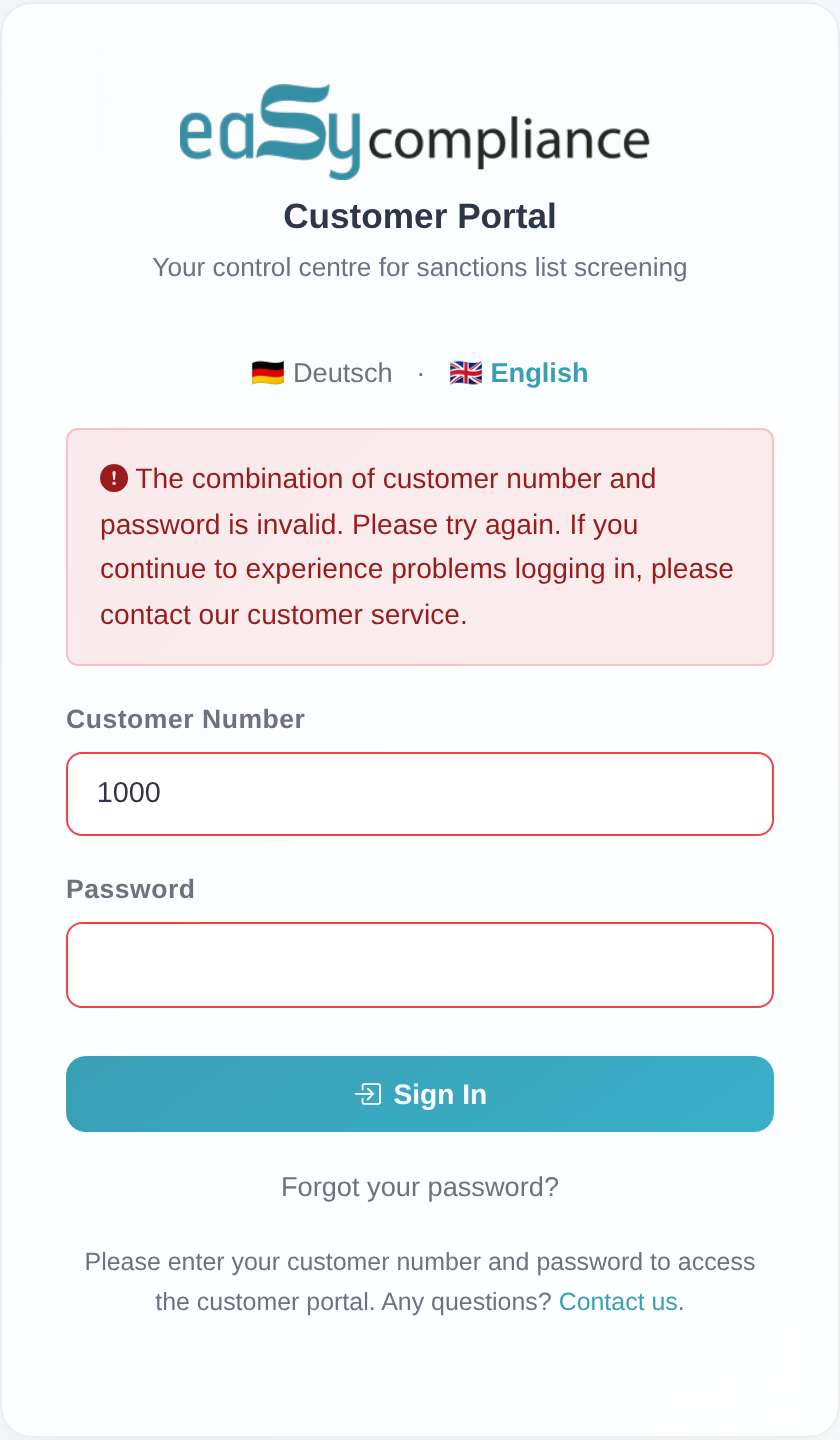 The sign-in page with an error message above the “Customer Number” and “Password” fields.
Good to know
- A single message for wrong details: for security reasons, sign-in does not reveal whether the customer number or the password was wrong – both lead to the message “The combination of customer number and password is invalid. …”.
- Help via chat: at the bottom of the sign-in page you find the note “Any questions?” with the “Contact us” link. This link opens our chat and reaches customer service directly.
- Two-factor code instead of a login error: if you are asked for a security code after a correct sign-in, this is not an error but the two-factor prompt (see Logging in with a two-factor code).
- Reset your password yourself: the “Forgot your password?” link is located right below the sign-in form.
- Only one active session per customer number: if you sign in while the same customer number is already active elsewhere, the “Concurrent login detected” dialog appears with the note “Another user is already signed in with this customer number. If you sign in anyway, the other user’s session will be terminated and they will be signed out.” With “Sign in anyway” you take over the sign-in – the other session is ended; with “Cancel” you abort.
- If your session was ended: if someone else signed in with the same credentials and chose “Sign in anyway”, you are signed out and see the message “You have been signed out because another user signed in with the same credentials.” Simply sign in again afterwards.
- Sign in again after a permissions change: if our customer service changes your permissions, your running session is ended. You then see “Your permissions have been changed. Please log in again for the changes to take effect.” Once you sign in again, the changes take effect.
- Several people? Use your own additional accesses: because only one session per customer number can be active at a time, each person should use their own additional access. Order additional user accounts from our customer service.
Frequently asked questions
What does “The combination of customer number and password is invalid.” mean? The customer number and password do not match. Check both for typos, upper- and lower-case and spaces. As an additional access, use your own customer number, not the one of the main access. If it persists, reset the password via “Forgot your password?”.
I see “Your account has been locked.” – what now? Your account is locked and can only be unlocked by our customer service. Contact us via the “Contact us” chat on the sign-in page.
Why does “Too many failed login attempts.” appear? After several failed attempts, sign-in is temporarily locked for security reasons. Wait about 15 minutes and then try again.
There is a warning about my browser on the sign-in page. Is that an error? No. The message only points out that your browser is outdated or not fully supported. Update it to the latest version of Chrome, Firefox, Edge or Safari.
I still cannot get in. Open the chat via the “Contact us” link at the bottom of the sign-in page. Our customer service will help you.
Why was I suddenly signed out? There are two possible causes. Either someone else signed in with the same credentials and chose “Sign in anyway” – then “You have been signed out because another user signed in with the same credentials.” appears. Or our customer service changed your permissions – then “Your permissions have been changed. Please log in again for the changes to take effect.” appears. In both cases, simply sign in again.
Why can only one person sign in at a time with the same customer number? Only one session per customer number is active at any time. If you sign in while the customer number is already in use elsewhere, the “Concurrent login detected” dialog appears. With “Sign in anyway” the other session is ended; with “Cancel” it stays active. If several people need to work in parallel, set up your own additional accesses via our customer service.
Requirements
- Your customer number and your password for the sign-in page https://kunde.easycompliance.de.
- If two-factor authentication is enabled, your security code as well (see Logging in with a two-factor code).
Related articles
Last reviewed: