
Configuring search options: search pattern, name variants, duplicates and more
In the “Suchoptionen” (Search options) card in the settings area of your dashboard, you control how precisely easycompliance matches names and how individual checks and monitoring behave. Here you set, among other things, the percentage match (the search pattern) as well as several Yes/No options for duplicates, name variants and individual checks.
Which percentage should I set?
In short: stay at 90 % unless you have a concrete reason to do otherwise.
The law prescribes no particular matching accuracy. You may therefore screen exactly (100 %). What makes sense depends above all on your data quality:
| Setting | When it makes sense |
|---|---|
| 100 % | Your names are well maintained and captured exactly. Finds only literal matches. |
| 90 % (default) | The normal case. Catches typos and diverging spellings – particularly with foreign names in unfamiliar spellings or other character sets. |
| lower | Use with care: the lower the value, the more false positives you have to assess. |
| "Namensteil" (name part) | Not for monitoring – it produces a great many false positives there. At most for a single check when you are unsure whether you have the complete name. |
An example to make the percentage tangible: a sanctions list contains "Abdul Salam". At 90 % you screen the name "Hassan Salam" – you get no hit. So a single matching name part is not enough; the system compares whether the name as a whole sounds or looks similar. That is exactly what stops every record of yours containing "Salam" from becoming a hit.
If you are unsure which value suits your data, ask our customer service – that is quicker than trial and error.
Careful: every change to the percentage triggers a full re-screening of all your records. Change it deliberately, not in passing.
What do "name variants" do?
With the option active, not only the spelling you entered is searched but every order of the name parts. From "Muster Lieferant GmbH" this produces, among others:
- Muster Lieferant GmbH
- Muster GmbH Lieferant
- Lieferant Muster GmbH
- Lieferant GmbH Muster
- GmbH Lieferant Muster
- GmbH Muster Lieferant
That sounds more thorough, but it has a price: combined with fault-tolerant matching, the number of hits can multiply – many of them with nothing to do with your business partner. For automatic list screening the function is therefore disabled by default and is only enabled after consulting our customer service. For the individual check you can set it as your default yourself, and via the API it can be switched on or off per request.
Step by step
- Sign in to the customer portal. You land on the dashboard.
- Scroll to the “Settings & Account Data” section or click the settings link in the sidebar.
- Locate the “Suchoptionen” (Search options) card.
- Change the percentage match (search pattern):
- In the dropdown under “Prozentuale Übereinstimmung” (Percentage match), select the
desired value (e.g.
100%,95%,90%…50%or “Namensteil” / name part). - Click “Übernehmen” (Apply).
- The confirmation appears: “Search pattern changed. A full re-scan of all your records will be triggered.”
- In the dropdown under “Prozentuale Übereinstimmung” (Percentage match), select the
desired value (e.g.
- Change the Yes/No options: for all other options, simply make a selection in the relevant dropdown (“Ja” / Yes or “Nein” / No) – the setting is saved immediately. On success the message appears: “Setting saved successfully.”
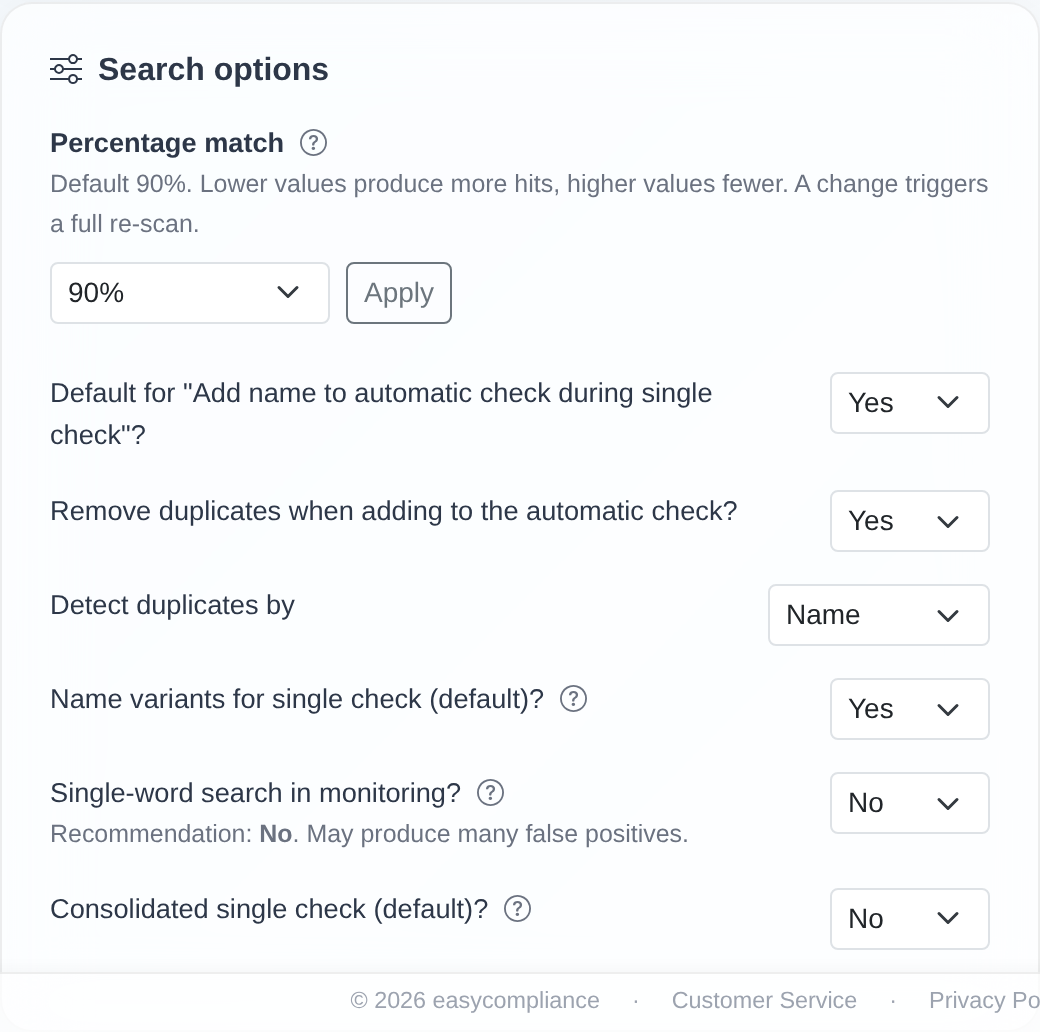 The “Suchoptionen” card with the search-pattern dropdown and its “Übernehmen” button and the other Yes/No settings.
Important note – full re-scan: As soon as you change the percentage match and click “Übernehmen” (Apply), a full re-scan of ALL your records is triggered. The system flags all open, not-yet-archived monitoring records for re-checking. Change this value deliberately, not casually.
Good to know
- Percentage match (search pattern): the default is 90%. As stated directly below the
field: “Standard 90%. Niedrigere Werte erzeugen mehr Treffer, höhere weniger. Eine
Änderung löst einen vollständigen Neu-Abgleich aus.” (Default 90%. Lower values produce
more hits, higher values fewer. A change triggers a full re-scan.) A high value (e.g.
100%) returns only very close matches; a low value (e.g.50%) returns more distant ones too – and therefore more hits, including false ones. The special value “Namensteil” (name part) searches for individual parts of a name. The search pattern applies to all monitoring modules (sanctions lists, PEP, Dow Jones) – including names you add to monitoring from a single check: there, the search pattern configured here applies, not the value chosen for the single check. The same applies to names you add to monitoring via the API (method=2): the API parameteraccuracyonly affects the screening of that request. - “Vorbelegung ‘LP-Name bei Einzelprüfung hinzufügen’?” (Pre-fill list name when adding from an individual check): controls whether, when you carry an individual-check result over into the screening list (monitoring), the name field is pre-filled by default.
- “Duplikate beim Hinzufügen zur Listenprüfung entfernen?” (Remove duplicates when adding to the screening list): when set to “Ja” (Yes), duplicate entries are skipped automatically when records are added to the screening list (for example during import).
- “Detect duplicates by” (“Duplikate erkennen anhand von”): this option only appears when duplicate removal is active. You choose whether duplicates are detected by “Name” or by “Reference” (“Referenz”). The default is “Name”.
- “Namensvarianten bei Einzelprüfung (Standard)?” (Name variants in individual check by default): controls whether the individual check also searches for name variants (permutations, e.g. swapped first and last names) by default.
- “Ein-Wort-Suche im Monitoring?” (Single-word search in monitoring): determines whether automatic monitoring already triggers on a single matching name part. Recommendation: No. The on-screen note states explicitly: “Empfehlung: Nein. Kann viele Falschtreffer erzeugen.” (Recommendation: No. May produce many false hits.)
- “Konsolidierte Einzelprüfung (Standard)?” (Consolidated individual check by default): this option only appears when more than one individual-check module is active. It defines whether the individual check runs across all enabled modules together (consolidated) by default.
- Where settings apply: search options apply to the respective customer. Which options are visible depends on permissions, your plan and the enabled modules.
Frequently asked questions
Which percentage-match value is the right one? The default is 90% and a good starting point for most use cases. Lower values find more (and more distant) matches but produce more false hits; higher values find fewer but more precise hits.
What happens when I change the search pattern? After clicking “Übernehmen” (Apply), a full re-scan of all your records is triggered. You see the message “Search pattern changed. A full re-scan of all your records will be triggered.”
Does the search pattern also apply to names I add to monitoring from a single check?
Yes. Monitoring always uses the search pattern configured here – regardless of the percentage
you chose for the single check. If the two values differ, the save block of the single check
shows a corresponding note when “Yes” is selected. The same holds for names added via the API
(method=2): the accuracy parameter only applies to the screening of that request; monitoring
runs with the search pattern configured here.
What does “Ein-Wort-Suche im Monitoring?” do and should I enable it? It makes monitoring trigger already on a single matching name part. We recommend No, as this setting may produce many false hits.
How do I prevent duplicate entries? Set “Duplikate beim Hinzufügen zur Listenprüfung entfernen?” (Remove duplicates) to “Ja” (Yes) and choose under “Detect duplicates by” whether to de-duplicate by “Name” or “Reference”.
I don’t see the “Konsolidierte Einzelprüfung (Standard)?” option. This option only appears when more than one individual-check module is active for your account. It is not available in a test access.
I can’t change the search options. Then your access is missing the “Edit settings” permission. Contact your company’s main access or our customer service.
Requirements
- You need the “Edit settings” permission. If it is missing, a note appears at the top of the settings area: “Für Ihren Benutzer sind die Berechtigungen zum Bearbeiten der Einstellungen deaktiviert.” (Editing settings is disabled for your user.)
- Some options are only visible when the matching features are enabled (for example, “Konsolidierte Einzelprüfung (Standard)?” / Consolidated individual check is only present when more than one individual-check module is active). A test access offers fewer options.
Related articles
- Managing account data & notification emails
- Individual check against sanctions lists
- Importing records from a file
Last reviewed: