
Adding names to your monitoring list (single or bulk)
You can add new records to your monitoring list directly in the customer portal – a single name via the form, or several names at once via bulk adding. New records are then screened automatically in the background against the lists. For large quantities, the file import is the better choice.
Step by step
- Open the monitoring overview and choose the module you want at the top.
- Click “View/Edit List” (or the number on the “Records in monitoring” tile). You reach the “View & edit records” page.
Add a single name
- In the “Add a single name” section, enter the name in the “Name / Company name”
field. This field is marked with * as a required field (e.g.
Max MustermannorMuster GmbH). - Optional: enter your own identifier in the “Your reference (optional)” field (e.g. a supplier ID or customer number).
- Click “Add”. On success, the name field is cleared and the message “The name was added successfully and is being checked in the background.” appears as a short toast. If duplicate detection is by reference and an entry with the same reference already exists, “Reference already exists.” appears instead.
Add several names at once
- Click “Bulk add”. A dialog window (modal) opens with the note “Enter the names – one per line. Entries that already exist are skipped.”
- In the text box, enter one name per line.
- Click “Add”. The result then appears as a short toast, e.g. “… added, … duplicates skipped.” – the first number is the newly created records, the second the skipped duplicates.
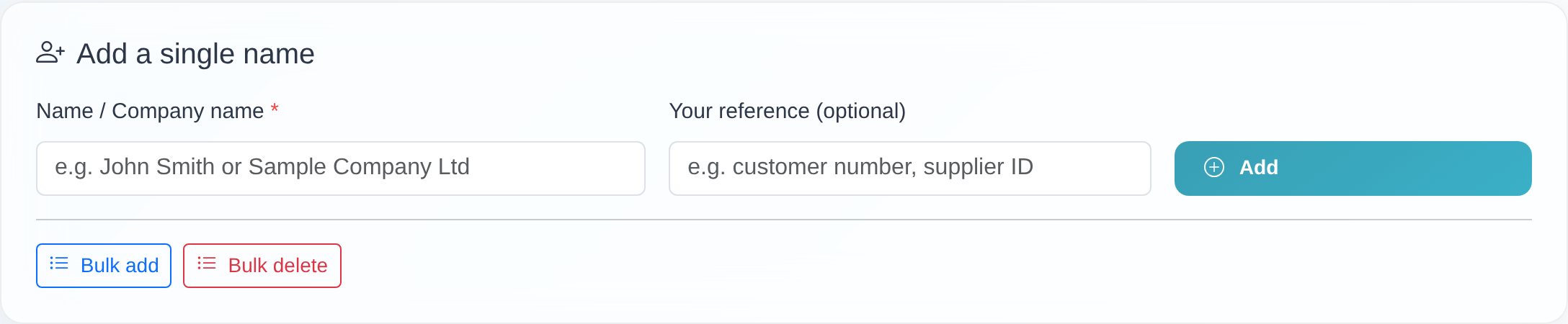 The “Add a single name” section with the “Name / Company name” and “Your reference (optional)” fields, the “Add” button and the “Bulk add” button.
Good to know
- Automatic background screening: newly added records are not checked immediately, but as part of the next automatic screening. Hits then appear in the module’s hits overview.
- Each name only once per account: if a name is already in your list, it is not added a second time. When adding a single name, “This record already exists in your list.” appears; when bulk adding, the entry is skipped as a duplicate. If your account detects duplicates by reference, an already used reference instead shows “Reference already exists.”
- Bulk actions run in a dialog window: “Bulk add” opens a modal (dialog window); the feedback (e.g. “… added, … duplicates skipped.”) then appears as a short toast, no longer as an embedded popup.
- An empty name is rejected: nothing can be saved without a name. When adding a single name, “Please enter a name.” appears; when bulk adding, “Please enter names.”
- The reference is optional and serves only your own matching. It has no effect on the screening.
- For large quantities, use the file import: if you want to create many records at once (e.g. from an Excel or CSV file), use the “Import Data” button instead of adding manually.
Frequently asked questions
How do I add a single name? On the “View & edit records” page, in the “Add a single name” section, enter the name in the required “Name / Company name” field, optionally a reference, and click “Add”.
How do I add several names at once? Click “Bulk add”, enter one name per line and click “Add”. The result shows how many records were added and how many duplicates were skipped.
Are the new names screened immediately? No. New records are screened automatically in the background – at the next automatic screening, not immediately. Hits then appear in the hits overview.
I get the message “This record already exists in your list.” The name is already in your monitoring list. Each name is kept only once per account. When bulk adding, such entries are skipped as duplicates.
I get the message “Reference already exists.” Your account detects duplicates by reference, and an entry with exactly this reference is already in your list. Use a different reference or leave the field empty.
I can’t see the add form. To add records you need permission to edit lists. Without it, “You do not have permission to edit lists.” appears when you try. Contact your manager access or customer service.
Can I upload a whole list this way? For larger quantities, use the file import via “Import Data” instead – see Importing records from a file.
Requirements
- An access with permission to edit lists. Without it, you see neither the form nor the add buttons; if you try, the message “You do not have permission to edit lists.” appears.
- The relevant module must be enabled for your account. Adding works the same way in every module (sanctions lists, PEP, Dow Jones).
Related articles
- What is automatic monitoring – and how do I read the overview?
- Deleting or resetting records
- Importing records from a file
Last reviewed: